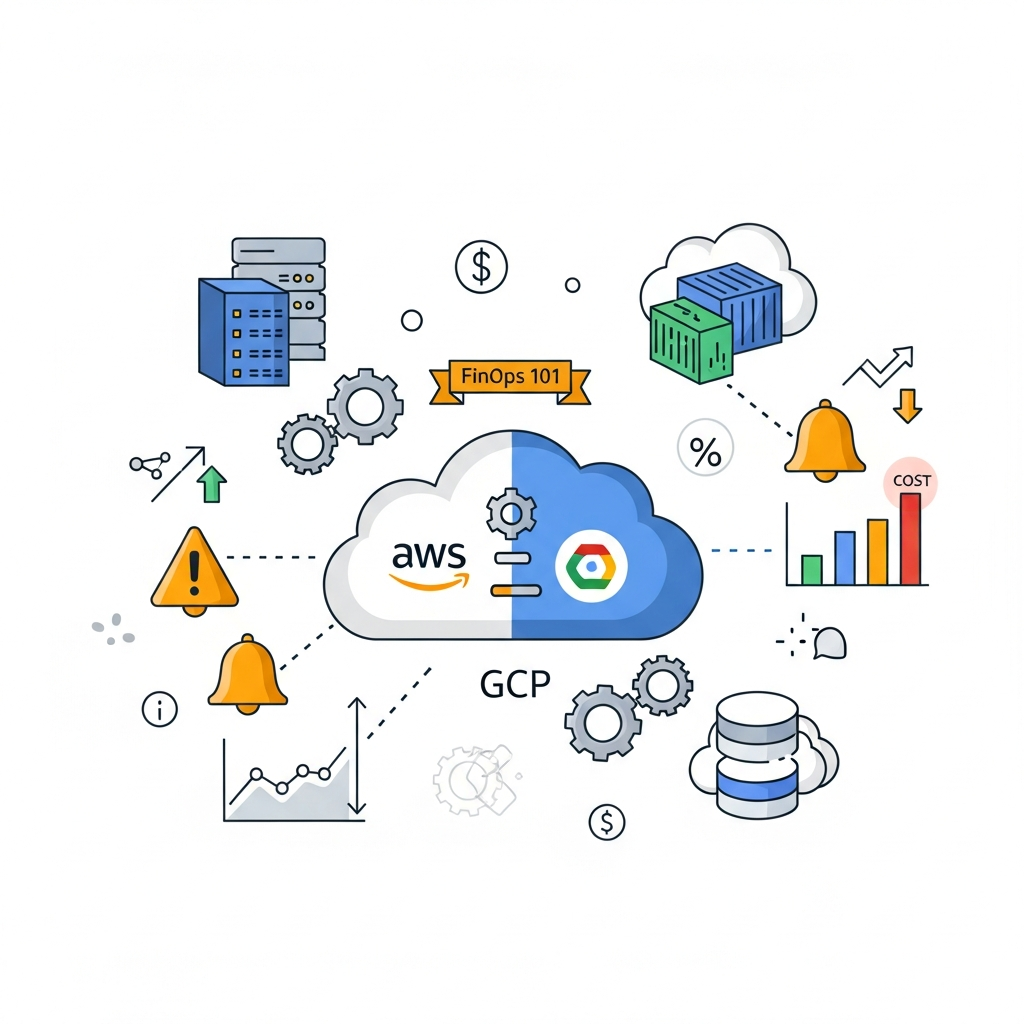
Introduction: Taming Cloud Sprawl with FinOps and Automated Alerts
In the dynamic world of cloud computing, the ease of provisioning resources often comes with a significant challenge: managing costs. Unchecked cloud spending can quickly spiral out of control, leading to "bill shock" and hindering innovation. This is where FinOps, a cultural practice that brings financial accountability to the variable spend model of cloud, plays a crucial role.
FinOps empowers organizations to make data-driven decisions about their cloud usage, fostering collaboration between engineering, finance, and business teams. A cornerstone of effective FinOps is the implementation of automated cost alerts. These alerts act as an early warning system, notifying relevant stakeholders when spending approaches or exceeds predefined thresholds, allowing for proactive intervention rather than reactive damage control.
This comprehensive guide will walk you through the process of setting up robust, automated cloud cost alerts on both Amazon Web Services (AWS) and Google Cloud Platform (GCP). We'll cover fundamental monitoring tools, practical configuration steps, code examples for integration, best practices, and common pitfalls to ensure your cloud finances remain transparent and under control.
Prerequisites: Getting Started with AWS and GCP
Before diving into the technical configurations, ensure you have the following in place:
- AWS Account: An active AWS account with administrative access or appropriate IAM permissions to create budgets, set up SNS topics, and configure Cost Anomaly Detection.
- GCP Project: An active GCP project with billing enabled and roles that allow you to create budgets and configure Pub/Sub topics and Cloud Functions.
- Basic CLI/SDK Setup: AWS CLI and
gcloudCLI installed and configured on your local machine for programmatic interaction. - Understanding of IAM/Roles: Familiarity with Identity and Access Management (IAM) concepts on both platforms is beneficial for securing your alerting infrastructure.
The FinOps Framework: A Culture of Cloud Cost Management
FinOps is more than just cost optimization; it's an operational framework that emphasizes collaboration, visibility, and continuous improvement. It involves three key phases:
- Inform: Providing visibility into cloud costs and usage to all stakeholders. This includes detailed billing reports, dashboards, and, critically, automated alerts.
- Optimize: Taking action based on the insights gained. This could involve rightsizing instances, identifying idle resources, negotiating discounts, or improving architectural efficiency.
- Operate: Continuously monitoring, evaluating, and refining cost management strategies. This phase ensures that cost efficiency becomes an ongoing part of daily operations.
Automated cost alerts directly support the "Inform" phase, providing timely, actionable data that fuels the "Optimize" phase. Without timely information, optimization efforts are often reactive and less effective.
Why Automated Cost Alerts are Non-Negotiable
Manual cost monitoring is tedious, error-prone, and often too slow to prevent significant overspending. Automated alerts offer several critical advantages:
- Proactive Problem Solving: Catching cost spikes early allows teams to investigate and rectify issues before they escalate into major financial burdens.
- Empowering Teams: By providing direct feedback on the cost implications of their resource usage, engineering teams become more cost-aware and accountable.
- Preventing Bill Shock: Unexpectedly high cloud bills can disrupt budgets and business planning. Alerts provide predictability.
- Identifying Anomalies: Sudden, unexplained cost increases can indicate misconfigurations, security breaches, or inefficient resource usage that might otherwise go unnoticed.
- Granular Control: Alerts can be configured at various levels (account, project, service, tag) to provide targeted notifications to specific teams.
AWS Cost Monitoring Essentials: Budgets and Cost Explorer
AWS provides powerful native tools for cost management:
- AWS Cost Explorer: This service allows you to visualize, understand, and manage your AWS costs and usage over time. You can analyze costs by service, resource, tag, and more, identifying trends and forecasting future spending.
- AWS Budgets: This service enables you to set custom budgets to track your cost and usage from a consolidated account or an individual account. You can define budgets for costs, usage, reservation utilization, and savings plan utilization. Crucially, AWS Budgets allows you to configure alerts when actual or forecasted costs exceed your defined thresholds.
- AWS Cost Anomaly Detection: A machine learning-powered service that continuously monitors your costs and usage, identifying unusual spending patterns and root causes.
These services form the foundation for building effective cost alerts on AWS.
Implementing AWS Budget Alerts: Step-by-Step Configuration
Setting up budget alerts in AWS is straightforward and highly effective. You can do this via the AWS Management Console or programmatically using the AWS CLI or SDKs.
Creating a Budget via Console
- Navigate to the AWS Billing Dashboard and select "Budgets" from the left navigation pane.
- Click "Create budget".
- Choose "Cost budget" and click "Next".
- Configure your budget details:
- Name: A descriptive name (e.g.,
Monthly_Dev_Environment_Cost). - Period:
Monthly,Quarterly, orAnnually. For most alerts,Monthlyis ideal. - Budget amount:
FixedorPlanned.Fixedis common for initial thresholds. - Starting month: Select the current or next month.
- Budgeted amount: Enter your target monthly spend (e.g.,
1000).
- Name: A descriptive name (e.g.,
- (Optional) Add filters to narrow down the scope (e.g., by service, tag, linked account). This is crucial for granular alerts.
- Click "Next".
Configuring Alert Thresholds
- On the "Set alert thresholds" page, click "Add an alert threshold".
- Threshold: Enter a percentage (e.g.,
80for 80%) or an absolute amount. - Trigger: Choose
Actual(when actual spend hits the threshold) orForecasted(when forecasted spend is predicted to hit the threshold).Forecastedprovides earlier warnings. - Recipients: Enter email addresses or specify an Amazon SNS topic ARN to send notifications. Using an SNS topic is highly recommended as it allows integration with other services (e.g., Lambda for Slack).
- You can add multiple alert thresholds (e.g., 80% forecasted, 100% actual, 120% actual).
- Click "Next", review, and "Create budget".
AWS CLI Example: Creating a Budget with Forecasted Alert
This example creates a monthly cost budget for a specific service (e.g., EC2) and sets an alert at 80% of the forecasted budget.
aws budgets create-budget \
    --account-id "123456789012" \
    --budget BudgetName="MonthlyEC2Budget",BudgetLimit={Amount="1000.0",Unit="USD"},TimeUnit="MONTHLY",BudgetType="COST",CostFilters={Service=["Amazon Elastic Compute Cloud"]},TimePeriod={Start="$(date -v1m +%s)",End="$(date -v1m +%s)"} \
--notifications-with-subscribers Notification={NotificationType="FORECASTED",ComparisonOperator="GREATER_THAN",Threshold=80.0,ThresholdType="PERCENTAGE"},Subscribers=[{SubscriptionType="EMAIL",Address="finops-team@example.com"},{SubscriptionType="SNS",Address="arn:aws:sns:us-east-1:123456789012:FinOpsAlertsTopic"}]Note: The date command for TimePeriod might vary based on your OS. For Linux/macOS, date -v1m +%s might not work; use date -d "$(date +%Y-%m-01)" +%s or similar to get the start of the current month in Unix epoch time. For End, you might need to calculate the end of the month or set a far future date if not using a specific end period.
Leveraging AWS Cost Anomaly Detection for Proactive Insights
AWS Cost Anomaly Detection uses machine learning to identify unusual spending patterns. It complements budget alerts by catching unexpected spikes that might not immediately breach a budget threshold but indicate an issue.
Setting up Anomaly Detection
- Navigate to the AWS Billing Dashboard and select "Cost Anomaly Detection".
- Click "Get started" or "Create an anomaly detector".
- Detector name: Provide a descriptive name.
- Monitor type: Choose "AWS services" (to monitor all services) or "Cost allocation tags" (to monitor specific tags, e.g.,
Project). - Monitor name: Name your cost monitor.
- Alert subscriptions: Define notification preferences.
- Notification frequency:
Daily,Weekly,Hourly. - Threshold: Minimum amount of anomalous spend to trigger an alert (e.g.,
50 USD). - Recipients: Email addresses or SNS topic ARN.
- Notification frequency:
- Review and create.
AWS CLI Example: Creating a Cost Anomaly Detector and Monitor
# 1. Create an Anomaly Detector
aws ce create-anomaly-detector \
    --anomaly-detector AnomalyDetectorName="FinOpsAnomalyDetector",AnomalyDetectorConfig={AnomalyDetectorType="SINGLE_ACCOUNT"}

# Output will include AnomalyDetectorArn. Use it in the next step.
# Example AnomalyDetectorArn: arn:aws:ce::123456789012:anomaly-detector/ad-xxxxxxxxxxxxxxxxx

# 2. Create an Anomaly Monitor (e.g., for EC2 service)
aws ce create-anomaly-monitor \
    --anomaly-monitor AnomalyMonitorName="EC2AnomalyMonitor",MonitorType="DIMENSIONAL",MonitorSpecification={Specification={Dimension="SERVICE",DimensionValues=["Amazon Elastic Compute Cloud"]}} \
    --output json

# Output will include AnomalyMonitorArn. Use it in the next step.
# Example AnomalyMonitorArn: arn:aws:ce::123456789012:anomaly-monitor/am-yyyyyyyyyyyyyyyyy

# 3. Create an Anomaly Subscription (linking detector to monitor and notifications)
aws ce create-anomaly-subscription \
    --anomaly-subscription SubscriptionName="EC2AnomalyAlerts",MonitorArnList=["arn:aws:ce::123456789012:anomaly-monitor/am-yyyyyyyyyyyyyyyyy"],Threshold=50.0,Frequency="DAILY",Subscriber=[
        {Type="EMAIL",Address="finops-alerts@example.com"},
        {Type="SNS",Address="arn:aws:sns:us-east-1:123456789012:FinOpsAlertsTopic"}
    ]
GCP Cost Monitoring Essentials: Billing Reports and Budgets
GCP offers similar capabilities for cost management:
- Billing Reports: Provides detailed insights into your GCP costs, broken down by project, service, SKU, region, and more. You can customize views and export data.
- Budgets & Alerts: Allows you to set spending limits for your GCP projects and receive notifications when your costs approach or exceed your budget. These alerts can be configured for actual or forecasted costs.
Implementing GCP Budget Alerts: Practical Configuration
Setting up budget alerts in GCP is done through the Cloud Console.
Creating a Budget via Console
- Navigate to the Google Cloud Console and select "Billing" from the navigation menu.
- Choose "Budgets & alerts" from the left navigation pane.
- Click "CREATE BUDGET".
- Name: Give your budget a descriptive name (e.g.,
Monthly_Prod_Project_Budget). - Projects, folders & organizations: Select the scope of your budget (e.g., a specific project or all projects in an organization).
- Products: Optionally filter by specific GCP products (e.g., Compute Engine, Cloud Storage).
- Time range: Select
Monthly,Quarterly, orAnnually. - Budget type: Choose
Specified amountand enter your target amount (e.g.,500). - Click "NEXT".
Configuring Alert Thresholds and Actions
- Threshold rules: Define your alert thresholds.
- Type: Choose
Actual(when actual spend hits the threshold) orForecasted(when forecasted spend is predicted to hit the threshold). - Percentage of budget: Enter a percentage (e.g.,
50%,80%,100%). - You can add multiple thresholds.
- Type: Choose
- Manage notifications: Configure how alerts are sent.
- Email recipients: Enter email addresses.
- Cloud Pub/Sub topic: Select an existing Pub/Sub topic or create a new one. This is crucial for integrating with custom notification systems (e.g., Cloud Functions).
- Click "FINISH".
gcloud CLI Example: Creating a Budget with Pub/Sub Alert
This example creates a monthly budget for a specific project and sends alerts to a Pub/Sub topic.
# First, ensure you have a Pub/Sub topic for alerts
gcloud pubsub topics create finops-gcp-alerts

# Create the budget
gcloud beta billing budgets create \
    --billing-account=YOUR_BILLING_ACCOUNT_ID \
    --display-name="MonthlyProdBudget" \
    --budget-amount=USD:1000.0 \
    --calendar-period=MONTH \
    --projects=projects/your-project-id \
    --threshold-rules=percentage=0.50,spend-basis=CURRENT_SPEND \
    --threshold-rules=percentage=0.80,spend-basis=FORECASTED_SPEND \
    --threshold-rules=percentage=1.00,spend-basis=CURRENT_SPEND \
    --notifications-rule=pubsub-topic=projects/your-project-id/topics/finops-gcp-alerts,schema-version=1.0
Replace YOUR_BILLING_ACCOUNT_ID and your-project-id with your actual IDs.
Integrating Alerts with Communication Platforms (Slack, PagerDuty)
Email alerts are a good start, but integrating with platforms like Slack or PagerDuty can significantly improve visibility and response times. This typically involves using serverless functions to process the alert messages and forward them.
AWS: SNS to Lambda to Slack
-
Create an SNS Topic: (If not already done) This topic will receive budget alerts.
bashaws sns create-topic --name FinOpsAlertsTopic # Output will include TopicArn: arn:aws:sns:us-east-1:123456789012:FinOpsAlertsTopic -
Create a Lambda Function: This function will subscribe to the SNS topic, parse the message, and send it to Slack.
- Runtime: Python 3.x
- Trigger: SNS (select your
FinOpsAlertsTopic) - Environment Variables:
SLACK_WEBHOOK_URL(your Slack incoming webhook URL)
python# lambda_function.py import json import os import urllib.request SLACK_WEBHOOK_URL = os.environ['SLACK_WEBHOOK_URL'] def lambda_handler(event, context): print(f"Received event: {json.dumps(event)}") for record in event['Records']: if 'Sns' in record: message = json.loads(record['Sns']['Message']) # AWS Budget Alert format if 'BudgetName' in message: budget_name = message['BudgetName'] threshold_type = message['ThresholdType'] notification_type = message['NotificationType'] actual_spend = message['ActualSpend']['Amount'] forecasted_spend = message['ForecastedSpend']['Amount'] budget_limit = message['BudgetLimit']['Amount'] unit = message['BudgetLimit']['Unit'] slack_message = { "text": f"*:red_circle: AWS Budget Alert: {budget_name}* *Status:* {notification_type} triggered for {threshold_type} spend.\n *Budget Limit:* {budget_limit} {unit}\n *Actual Spend:* {actual_spend} {unit}\n *Forecasted Spend:* {forecasted_spend} {unit}\n *Details:* Check AWS Budgets Console for more info." } # AWS Cost Anomaly Detection format (simplified example) elif 'AnomalyScore' in message: anomaly_score = message['AnomalyScore'] current_spend = message['CurrentSpend'] expected_spend = message['ExpectedSpend'] impact = message['Impact'] anomaly_url = message.get('AnomalyDetectionConsoleUrl', 'N/A') slack_message = { "text": f"*:warning: AWS Cost Anomaly Detected!*\n *Score:* {anomaly_score:.2f}\n *Current Spend:* {current_spend['Amount']} {current_spend['Unit']}\n *Expected Spend:* {expected_spend['Amount']} {expected_spend['Unit']}\n *Impact:* {impact['Amount']} {impact['Unit']}\n *Details:* {anomaly_url}" } else: slack_message = {"text": f"Unknown AWS alert received: {json.dumps(message)}"} req = urllib.request.Request(SLACK_WEBHOOK_URL, data=json.dumps(slack_message).encode('utf-8'), headers={'Content-Type': 'application/json'}) with urllib.request.urlopen(req) as response: response.read() return { 'statusCode': 200, 'body': json.dumps('Alert processed successfully!') } -
Grant Lambda Permissions: Ensure your Lambda's execution role has permissions to publish to SNS if necessary, and log to CloudWatch.
GCP: Pub/Sub to Cloud Function to Slack
-
Create a Pub/Sub Topic: (If not already done) This topic will receive budget alerts.
bashgcloud pubsub topics create finops-gcp-alerts -
Create a Cloud Function: This function will trigger on Pub/Sub messages, parse the message, and send it to Slack.
- Trigger type: Cloud Pub/Sub
- Topic: Select your
finops-gcp-alertstopic. - Runtime: Python 3.x
- Entry point:
send_slack_notification - Environment Variable:
SLACK_WEBHOOK_URL
python# main.py import base64 import json import os import requests SLACK_WEBHOOK_URL = os.environ.get('SLACK_WEBHOOK_URL') def send_slack_notification(event, context): if not SLACK_WEBHOOK_URL: print("SLACK_WEBHOOK_URL environment variable not set. Skipping Slack notification.") return pubsub_message = base64.b64decode(event['data']).decode('utf-8') message_data = json.loads(pubsub_message) print(f"Received message: {json.dumps(message_data)}") # GCP Budget Alert format if 'costAmount' in message_data and 'budgetAmount' in message_data: budget_name = message_data.get('budgetDisplayName', 'N/A') cost_amount = message_data['costAmount'] budget_amount = message_data['budgetAmount'] currency = message_data.get('currencyCode', 'USD') threshold_value = message_data.get('alertThresholdExceeded', 'N/A') forecasted_spend = message_data.get('forecastThresholdExceeded', 'N/A') slack_message = { "text": f"*:red_circle: GCP Budget Alert: {budget_name}* *Status:* Budget threshold of {threshold_value}% exceeded.\n *Current Spend:* {cost_amount} {currency}\n *Budget Limit:* {budget_amount} {currency}\n *Forecasted Spend:* {forecasted_spend} {currency} (if applicable)\n *Details:* Check GCP Billing Console for more info." } else: slack_message = {"text": f"Unknown GCP alert received: {json.dumps(message_data)}"} try: response = requests.post(SLACK_WEBHOOK_URL, json=slack_message) response.raise_for_status() # Raise an exception for HTTP errors print(f"Slack notification sent. Status code: {response.status_code}") except requests.exceptions.RequestException as e: print(f"Error sending Slack notification: {e}")Dependencies (requirements.txt):
requests -
Grant Cloud Function Permissions: Ensure the Cloud Function's service account has the
Pub/Sub Subscriberrole on the topic andCloud Functions Invokerrole for itself if it's being invoked by another service.
FinOps Best Practices for Effective Alerting
To maximize the effectiveness of your automated cost alerts, consider these best practices:
- Granularity and Scope: Create specific budgets and alerts for different environments (dev, staging, prod), projects, teams, or even specific high-cost services. Overly broad alerts lead to noise; overly narrow ones might miss critical issues.
- Multiple Thresholds: Implement multiple alert thresholds (e.g., 50% forecasted, 80% actual, 100% actual, 120% actual) to provide progressive warnings and allow ample time for intervention.
- Ownership and Accountability: Assign clear ownership for each budget and its associated alerts. The team responsible for the resources should be the primary recipient of alerts.
- Actionable Alerts: Ensure alerts contain enough context (e.g., budget name, current spend, link to console) to allow recipients to quickly understand the issue and take action.
- Review and Adjust Regularly: Cloud usage patterns change. Review your budgets and alert thresholds quarterly or bi-annually. Adjust them to reflect new projects, decommissioned resources, or updated spending targets.
- Integrate with FinOps Culture: Use alerts not just as warnings, but as conversation starters. Foster a culture where teams discuss cost implications and proactively seek optimization opportunities.
- Test Your Alerts: Periodically test your alert configurations to ensure they are working as expected. Simulate cost spikes if possible, or temporarily lower thresholds to trigger them.
- Leverage Tags/Labels: Consistently apply tags (AWS) or labels (GCP) to your resources. This enables powerful filtering for budgets and provides granular cost visibility for troubleshooting.
Common Pitfalls and Strategies for Avoiding Alert Fatigue
Automated alerts are powerful, but if poorly managed, they can lead to "alert fatigue," where teams become desensitized to notifications and ignore critical warnings.
- Too Many Alerts, Too Little Action: If every minor fluctuation triggers an alert, people will start ignoring them. Focus on significant deviations or thresholds that genuinely require attention.
- Strategy: Refine thresholds, use forecasted alerts for early warnings, and actual alerts for critical breaches. Consolidate alerts where appropriate.
- Lack of Context or Actionability: An alert that just says "Cost exceeded" is unhelpful. Provide details on what exceeded, by how much, and where to investigate.
- Strategy: Customize your alert messages (e.g., via Lambda/Cloud Function) to include relevant links, responsible teams, and even suggested first steps.
- Incorrect Scope: Alerts configured for the entire organization might be too broad, while alerts for individual micro-services might be too noisy.
- Strategy: Use a hierarchical approach. High-level alerts for finance, team-specific alerts for engineers, and critical service alerts for on-call teams.
- Ignoring the "Why": An alert is a symptom, not the root cause. Don't just acknowledge; investigate why the cost increased.
- Strategy: Pair alerts with a process for investigation and root cause analysis. Encourage teams to use Cost Explorer/Billing Reports to drill down.
- Static Budgets in a Dynamic Cloud: Setting a budget once and forgetting it is a recipe for disaster in a rapidly changing cloud environment.
- Strategy: Schedule regular budget reviews. Automate budget adjustments where feasible (e.g., for project growth).
Conclusion: Empowering Your Teams with Cost Intelligence
Automated cloud cost alerts are an indispensable component of a mature FinOps strategy. They transform reactive cost management into a proactive, collaborative effort, ensuring that your cloud spending remains aligned with business value. By implementing the strategies and tools discussed for AWS and GCP, you empower your engineering, finance, and business teams with the visibility and intelligence needed to make informed decisions, optimize resource utilization, and prevent costly surprises.
Remember that FinOps is a journey, not a destination. Continuously review your alerting mechanisms, adapt to evolving cloud usage, and foster a culture of cost awareness across your organization. The cloud offers unparalleled flexibility and scalability; with robust cost governance, you can harness its full potential without compromising financial control.
Enjoyed this deep dive? Buy me a coffee!
Every article on CodeWithYoha is 100% free, independent, and sponsor-free. If this guide saved you hours of debugging or helped you architect better software, consider supporting future guides with a coffee ($5, $10, or any amount of your choice).

Written by
CodewithYohaFull-Stack Software Engineer with 7+ years of experience in Java, Spring Boot, and cloud architecture across AWS, Azure, and GCP. Writing production-grade engineering patterns for developers who ship real software.