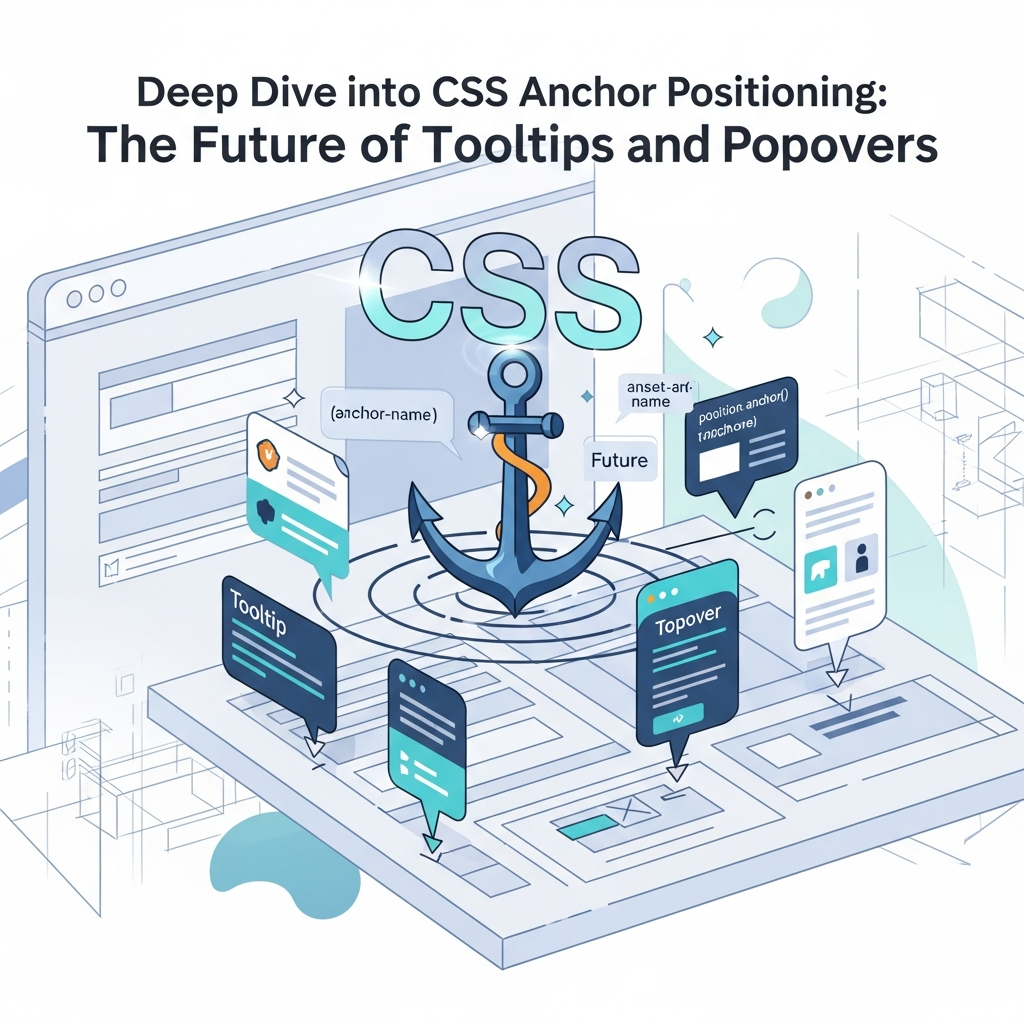
Introduction: The Quest for Perfect UI Positioning
For decades, one of the most persistent challenges in front-end development has been the reliable positioning of dynamic UI elements. Think tooltips, popovers, dropdown menus, context menus, and custom select boxes. These elements need to appear adjacent to a specific "anchor" element, remain in place even when the page scrolls or resizes, and gracefully adjust if they would otherwise overflow the viewport.
Traditionally, achieving this level of robustness required a significant amount of JavaScript. Developers would calculate the anchor element's getBoundingClientRect(), then use position: absolute and manually set top, left, right, or bottom values for the popover. Libraries like Popper.js and Floating UI emerged to abstract this complexity, offering sophisticated logic for collision detection and re-positioning. While incredibly powerful, these solutions introduce JavaScript overhead, potential performance implications, and an imperative approach to what often feels like a declarative styling problem.
What if CSS could handle this natively? What if you could declaratively tell an element, "Position yourself relative to this other element, and if you hit the edge of the screen, try this alternative position"? This is precisely the problem that CSS Anchor Positioning aims to solve. It's a game-changer, bringing powerful, declarative, and performant positioning capabilities directly into the browser's rendering engine.
Part of the Interop 2024 effort, CSS Anchor Positioning is rapidly gaining browser support, signaling a new era for dynamic UI development. This comprehensive guide will deep dive into its core concepts, practical applications, and best practices, empowering you to build more robust and maintainable interfaces.
Prerequisites
To get the most out of this guide, you should have:
- A solid understanding of HTML and CSS fundamentals.
- Familiarity with the CSS box model and basic positioning (
position: relative,absolute). - An awareness of how to use browser developer tools for inspecting and debugging CSS.
- A modern browser (e.g., Chrome, Edge, Firefox, Safari) with experimental web platform features enabled, or a version supporting Anchor Positioning natively (check caniuse.com for current status).
The Pain Points of Traditional Positioning
Before we dive into the solution, let's briefly recap why traditional methods fall short:
position: absoluteLimitations: An absolutely positioned element is positioned relative to its nearest positioned ancestor, not necessarily the element it's conceptually tied to (its "anchor"). This often forces developers to manipulate the DOM structure or usez-indexhacks.- JavaScript Complexity: Calculating positions, monitoring scroll/resize events, and implementing collision detection with
getBoundingClientRect()is boilerplate and error-prone. Libraries abstract this, but still require JS execution and can introduce layout shifts. - Performance Overhead: Constant recalculations and DOM manipulations via JavaScript can impact performance, especially on complex pages or lower-powered devices.
- Lack of Responsiveness: JS-based solutions often need to re-run their logic on every scroll, resize, or even layout change, which is inefficient. Native CSS handles this inherently within the rendering pipeline.
- Viewport Clipping: Without explicit logic, popovers can extend beyond the viewport boundaries, leading to content being cut off and a poor user experience.
Enter CSS Anchor Positioning: A Declarative Revolution
CSS Anchor Positioning introduces a native, declarative mechanism to position one element (the "anchored element") relative to another specific element (the "anchor element"). It's built on a few core concepts:
anchor-name: A CSS property used to name an element, making it an "anchor" that other elements can reference.anchor()function: Used within positioning properties (top,left,right,bottom) to specify an edge or center of a named anchor.anchor-size()function: Allows referencing the width or height of a named anchor.position-fallback: A powerful mechanism to define a list of alternative positioning strategies if the primary one would cause the anchored element to overflow its containing block or the viewport.@position-fallbackrule: Used to define reusable named fallback strategies.anchor-default: A property to set a default anchor for a subtree, simplifying common scenarios.
The beauty of this approach is that the browser handles all the complex logic: calculating positions, detecting overflows, applying fallbacks, and re-positioning on scroll or resize – all without a single line of JavaScript.
Declaring Anchors: anchor-name and anchor-default
To use anchor positioning, you first need to identify your anchor element.
anchor-name
The anchor-name property assigns a custom identifier to an element, making it available as an anchor. The name must start with --, similar to CSS custom properties.
.my-button {
  anchor-name: --my-button-anchor;
  /* Other styles for the button */
}
Once an element has an anchor-name, it can be referenced by any other element in the same document.
anchor-default
For scenarios where many elements within a subtree need to reference the same anchor, anchor-default simplifies the process. You can apply anchor-default to a parent element, and all its descendants can then implicitly reference that anchor without needing to specify the anchor-name in every anchor() function call.
<div class="menu-container">
  <button class="menu-trigger">Open Menu</button>
  <ul class="dropdown-menu">
    <li>Item 1</li>
    <li>Item 2</li>
  </ul>
</div>.menu-container {
anchor-default: --menu-trigger-anchor;
}
.menu-trigger {
anchor-name: --menu-trigger-anchor;
}
.dropdown-menu {
position: absolute;
/* Can now implicitly reference --menu-trigger-anchor */
top: anchor(bottom);
left: anchor(left);
}This is incredibly useful for components like dropdowns or complex forms where multiple associated elements might need to position themselves relative to a central anchor.
Positioning with anchor() and anchor-size()
The anchor() function is your primary tool for positioning. It's used within top, bottom, left, right, inset, margin-inline-start, etc., to specify an edge or center of the named anchor.
anchor() Function Syntax
anchor([<anchor-name>] <side-or-center-keyword>)
<anchor-name>: (Optional) The name of the anchor element (e.g.,--my-button-anchor). If omitted, it defaults to theanchor-defaultof the nearest ancestor or the element withanchor-name: self.<side-or-center-keyword>: Can betop,bottom,left,right,center(for both horizontal and vertical midpoints),block-start,block-end,inline-start,inline-end.
Let's create a simple tooltip that appears below a button:
Code Example 1: Basic Tooltip
<button id="myButton">Hover over me</button>
<div id="myTooltip" class="tooltip">I am a tooltip!</div>#myButton {
padding: 10px 20px;
background-color: #007bff;
color: white;
border: none;
border-radius: 4px;
cursor: pointer;
anchor-name: --button-anchor;
}
.tooltip {
position: absolute;
/* Position relative to --button-anchor */
top: anchor(--button-anchor bottom);
left: anchor(--button-anchor left);
background-color: #333;
color: white;
padding: 8px 12px;
border-radius: 4px;
font-size: 0.9em;
white-space: nowrap;
pointer-events: none;
opacity: 0;
transition: opacity 0.2s;
z-index: 1000;
}
#myButton:hover + .tooltip,
#myButton:focus + .tooltip {
opacity: 1;
}In this example, the tooltip's top is aligned with the bottom edge of --button-anchor, and its left is aligned with the left edge of --button-anchor. The tooltip will now follow the button even if the button moves due to layout changes, scrolling, or resizing.
anchor-size() Function
The anchor-size() function allows you to retrieve the computed width or height of a named anchor. This is incredibly useful for centering, offsetting, or sizing elements relative to their anchor.
anchor-size([<anchor-name>] <dimension-keyword>)
<dimension-keyword>: Can bewidthorheight.
Let's center the tooltip horizontally below the button:
.tooltip {
  position: absolute;
  top: anchor(--button-anchor bottom);
  left: anchor(--button-anchor center);
  transform: translateX(-50%); /* Traditional way to center */

  /* OR using anchor-size for full CSS centering */
  /*
  left: calc(anchor(--button-anchor left) + (anchor-size(--button-anchor width) / 2));
  transform: translateX(-50%);
  */
  /* OR even better, using anchor-size to calculate the left offset for centering */
  /*
  left: calc(anchor(--button-anchor center) - (var(--tooltip-width) / 2));
  */
  /* Let's keep it simple with transform for this example, but know anchor-size is there! */
}
For truly dynamic centering, you'd typically combine anchor-size() with calc() or use anchor(center) for both axes.
Mastering position-fallback for Robust UIs
One of the most powerful features of CSS Anchor Positioning is position-fallback. It allows you to define a list of alternative positioning strategies that the browser will try if the primary position causes the anchored element to overflow its containing block or the viewport.
Why Fallbacks are Essential
Imagine a tooltip that's supposed to appear below a button. If the button is near the bottom of the screen, the tooltip would be clipped. With position-fallback, you can tell the browser, "If it doesn't fit below, try putting it above. If that doesn't work, try to the right," and so on.
Defining @position-fallback Rules
Fallback strategies are defined using the @position-fallback at-rule. You give a fallback strategy a name (starting with --), and then inside, you list a series of positioning attempts.
@position-fallback --tooltip-fallback {
  /* First attempt: Default position (e.g., below anchor) */
  @try {
    top: anchor(bottom);
    left: anchor(left);
  }
  /* Second attempt: If first overflows, try above anchor */
  @try {
    bottom: anchor(top);
    left: anchor(left);
  }
  /* Add more @try rules as needed */
}
Then, apply this strategy to your anchored element:
.tooltip {
  position: absolute;
  position-fallback: --tooltip-fallback;
  /* ... other styles ... */
}
The browser will evaluate each @try block in order. As soon as a position fits without overflowing, that one is chosen. If none of the @try blocks fit, the browser will use the first @try block's position, even if it overflows.
Code Example 2: Simple Top/Bottom Fallback Tooltip
Let's enhance our tooltip to flip to the top if it overflows the bottom of the viewport.
<div class="container">
  <button class="target-button">Hover for flexible tooltip</button>
  <div class="flexible-tooltip">I can appear above or below!</div>
</div>

<div class="container" style="margin-top: 60vh;"> <!-- Pushes button lower -->
  <button class="target-button">Hover for flexible tooltip</button>
  <div class="flexible-tooltip">I can appear above or below!</div>
</div>.container {
border: 1px dashed #ccc;
padding: 20px;
margin-bottom: 20px;
}
.target-button {
padding: 10px 20px;
background-color: #007bff;
color: white;
border: none;
border-radius: 4px;
cursor: pointer;
anchor-name: --target-anchor;
}
@position-fallback --flip-fallback {
/* Default: Below the anchor, aligned left */
@try {
top: anchor(bottom);
left: anchor(left);
}
/* Fallback 1: Above the anchor, aligned left */
@try {
bottom: anchor(top);
left: anchor(left);
}
}
.flexible-tooltip {
position: absolute;
position-fallback: --flip-fallback;
background-color: #333;
color: white;
padding: 8px 12px;
border-radius: 4px;
font-size: 0.9em;
white-space: nowrap;
pointer-events: none;
opacity: 0;
transition: opacity 0.2s;
z-index: 1000;
/* Offset to avoid overlapping the button */
margin-block-start: 5px; /* For top: anchor(bottom) */
margin-block-end: 5px; /* For bottom: anchor(top) */
}
.target-button:hover + .flexible-tooltip,
.target-button:focus + .flexible-tooltip {
opacity: 1;
}Notice how we define margin-block-start and margin-block-end. These will be applied based on which top or bottom property is active, providing a consistent spacing from the anchor regardless of its vertical position.
Advanced Fallbacks with inset-area and Multiple Steps
@position-fallback can become quite sophisticated. You can define numerous @try blocks to cover various scenarios. Additionally, the inset-area property offers a convenient shorthand for defining all four positioning properties (top, right, bottom, left) for a specific area around the anchor.
inset-area Property
inset-area accepts keywords like top, bottom, left, right, top-left, bottom-right, center, etc., optionally preceded by an anchor-name. It's a powerful way to succinctly describe common positioning relationships.
Example: inset-area: anchor(--my-anchor top-left); would position the element such that its top-left corner aligns with the anchor's top-left corner.
Code Example 3: Complex Multi-directional Fallback
Let's create a popover that tries to appear to the bottom-start, then bottom-end, then top-start, then top-end, and finally centers if nothing else works.
@position-fallback --multi-directional-fallback {
  /* 1. Try bottom-start (logical property: inline-start for LTR, inline-end for RTL) */
  @try {
    inset-area: anchor(block-end inline-start);
    margin-block-start: 10px;
  }
  /* 2. Try bottom-end */
  @try {
    inset-area: anchor(block-end inline-end);
    margin-block-start: 10px;
  }
  /* 3. Try top-start */
  @try {
    inset-area: anchor(block-start inline-start);
    margin-block-end: 10px;
  }
  /* 4. Try top-end */
  @try {
    inset-area: anchor(block-start inline-end);
    margin-block-end: 10px;
  }
  /* 5. Finally, try centering if nothing else fits */
  @try {
    top: anchor(center);
    left: anchor(center);
    transform: translate(-50%, -50%);
  }
}

.popover {
  position: absolute;
  position-fallback: --multi-directional-fallback;
  background-color: #f9f9f9;
  border: 1px solid #ddd;
  border-radius: 4px;
  padding: 15px;
  box-shadow: 0 4px 8px rgba(0,0,0,0.1);
  min-width: 200px;
  max-width: 300px;
  z-index: 1000;
  opacity: 0;
  pointer-events: none;
  transition: opacity 0.2s;
}

/* Assume .trigger-button and .popover are structured like previous examples */
/* .trigger-button { anchor-name: --popover-anchor; } */
/* .trigger-button:hover + .popover { opacity: 1; pointer-events: auto; } */
This demonstrates the power of position-fallback to create highly adaptive UI components that respond intelligently to their surroundings.
Inherent Responsiveness and Dynamic Layouts
One of the most significant advantages of CSS Anchor Positioning is its inherent responsiveness. Unlike JavaScript-based solutions, which require explicit event listeners and recalculations for every layout change, anchor-positioned elements automatically adapt to:
- Scrolling: As the anchor element scrolls, the anchored element moves with it, maintaining its relative position.
- Resizing: If the viewport or the anchor element changes size, the anchored element's position is automatically re-evaluated.
- Layout Changes: Any CSS layout change that affects the anchor's position (e.g., a
flex-growvalue changing, elements being added/removed) will trigger an automatic re-positioning of the anchored element.
This means less code, fewer performance bottlenecks, and a more robust user experience out-of-the-box.
Practical Applications and Real-World Examples
CSS Anchor Positioning simplifies a wide range of common UI patterns:
- Tooltips: As shown in earlier examples, simple and robust tooltips are now a breeze.
- Popovers & Dropdowns: Complex dropdown menus that need to open below a button but flip if space is limited.
- Context Menus: Aligning a menu to a right-click event location or a specific element.
- Floating Labels: Input fields where the label floats above the input when text is entered, or aligns precisely with the input's content.
- Custom Select Elements: Positioning the custom options list precisely below the custom select trigger.
- Validation Messages: Displaying error messages directly adjacent to the form field they pertain to.
Code Example 4: A Full Popover Component
Let's build a more complete popover component, using the <dialog> element and the experimental Popover API (if available, otherwise a simple div).
<button id="openPopoverBtn" type="button">Open Popover</button>

<dialog id="myPopover" class="custom-popover">
  <h3>Popover Title</h3>
  <p>This is some content inside the popover.</p>
  <button id="closePopoverBtn">Close</button>
</dialog>#openPopoverBtn {
padding: 12px 25px;
background-color: #28a745;
color: white;
border: none;
border-radius: 5px;
cursor: pointer;
font-size: 1.1em;
anchor-name: --popover-trigger;
margin: 100px; /* To demonstrate positioning */
}
.custom-popover {
position: absolute;
position-fallback: --popover-fallback;
background-color: white;
border: 1px solid #ccc;
border-radius: 8px;
box-shadow: 0 5px 15px rgba(0,0,0,0.2);
padding: 20px;
min-width: 250px;
max-width: 350px;
z-index: 1000;
/* Hide by default for dialog element */
display: none;
}
.custom-popover[open] {
display: block; /* Show when dialog is open */
}
.custom-popover h3 {
margin-top: 0;
color: #333;
}
.custom-popover button {
margin-top: 15px;
padding: 8px 15px;
background-color: #dc3545;
color: white;
border: none;
border-radius: 4px;
cursor: pointer;
}
@position-fallback --popover-fallback {
/* 1. Try bottom-center */
@try {
top: anchor(--popover-trigger bottom);
left: anchor(--popover-trigger center);
transform: translateX(-50%);
margin-block-start: 10px;
}
/* 2. Try top-center */
@try {
bottom: anchor(--popover-trigger top);
left: anchor(--popover-trigger center);
transform: translateX(-50%);
margin-block-end: 10px;
}
/* 3. Try right-center */
@try {
left: anchor(--popover-trigger right);
top: anchor(--popover-trigger center);
transform: translateY(-50%);
margin-inline-start: 10px;
}
/* 4. Try left-center */
@try {
right: anchor(--popover-trigger left);
top: anchor(--popover-trigger center);
transform: translateY(-50%);
margin-inline-end: 10px;
}
}// Basic JavaScript to open/close the dialog
const openBtn = document.getElementById('openPopoverBtn');
const closeBtn = document.getElementById('closePopoverBtn');
const popover = document.getElementById('myPopover');
openBtn.addEventListener('click', () => {
popover.showModal(); // For <dialog>
// If using Popover API: popover.togglePopover();
});
closeBtn.addEventListener('click', () => {
popover.close();
});
// Close popover if clicking outside (for dialog)
popover.addEventListener('click', (event) => {
if (event.target === popover) {
popover.close();
}
});This example showcases how position-fallback can handle multiple directions, ensuring the popover always finds a suitable spot. The JavaScript is minimal, only handling the showModal() and close() logic for the <dialog> element.
Best Practices for Robust Anchor Positioning
To make the most of CSS Anchor Positioning, consider these best practices:
- Semantic HTML: Use appropriate elements like
<dialog>,<details>/<summary>, or the newpopoverattribute (when widely available) to structure your dynamic UI components. This improves accessibility and often provides built-in behaviors. - Accessibility First: Ensure your anchored elements are still accessible via keyboard navigation. Use ARIA attributes (e.g.,
aria-haspopup,aria-controls,aria-expanded) to convey their purpose and state to assistive technologies. - Clear Naming Conventions: Use descriptive
anchor-namevalues (e.g.,--user-avatar-anchor,--notification-icon-anchor) to keep your CSS organized and readable. - Logical Properties: Prefer
block-start,block-end,inline-start,inline-endovertop,bottom,left,rightwhen appropriate, especially for multi-directional fallbacks, to ensure your UI adapts correctly to different writing modes (e.g., LTR, RTL). - Manage
z-index: Anchored elements often need to appear above other content. Usez-indexcarefully to manage layering, ensuring your popovers are visible. - Keep Fallbacks Concise: While you can have many
@tryblocks, too many can make debugging harder. Prioritize the most common and sensible positions. - Progressive Enhancement: For browsers that don't yet support CSS Anchor Positioning, provide a JavaScript-based fallback. Libraries like Popper.js can still be used as a polyfill or graceful degradation strategy.
Common Pitfalls and Future Considerations
As a relatively new feature, there are a few things to keep in mind:
- Browser Support: While part of Interop 2024, full, stable browser support is still rolling out. Always check
caniuse.comand consider using feature flags or polyfills for production environments targeting older browsers. - Debugging: Debugging
position-fallbackcan be tricky. Browser developer tools are evolving to provide better visualization of fallback attempts. For now, inspect the computed styles and experiment with different@tryorders. - Interaction with Other CSS: Be mindful of how anchor positioning interacts with
transform,contain, andoverflowproperties on parent elements.transformcan create new containing blocks, andoverflow: hiddencan clip your anchored elements. - Performance of Complex Fallbacks: While native, extremely complex
position-fallbackstrategies with many@tryblocks might have a minor performance impact, it will still generally outperform equivalent JavaScript solutions. anchor-scope(Future): A related concept,anchor-scope, is being discussed to explicitly define the scope within which ananchor-nameis unique, further enhancing modularity. Keep an eye on evolving specifications.
Conclusion: Embracing the Future of Web UI
CSS Anchor Positioning is a monumental leap forward for web UI development. By moving the complexities of dynamic element positioning from JavaScript to native CSS, it offers a declarative, performant, and inherently robust solution for a wide array of common UI patterns. Developers can now build tooltips, popovers, and dropdowns with significantly less code, improved maintainability, and better user experience.
While still maturing in terms of browser support, the direction is clear: CSS is becoming increasingly capable of handling layout challenges that once strictly required JavaScript. Start experimenting with CSS Anchor Positioning today, contribute to its evolution by providing feedback to browser vendors, and get ready to build the next generation of truly responsive and resilient web interfaces.
Embrace the future, and let CSS do the heavy lifting!

Written by
CodewithYohaFull-Stack Software Engineer with 7+ years of experience in Java, Spring Boot, and cloud architecture across AWS, Azure, and GCP. Writing production-grade engineering patterns for developers who ship real software.