
Mastering the View Transitions API for Seamless Web Experiences

Introduction
In the modern web, user experience is paramount. Users expect not just functional, but also delightful and intuitive interfaces. One area where the web has historically lagged behind native applications is in the smoothness of transitions between different states or pages. Traditional web navigation often feels abrupt, with content instantly popping in or out, creating a jarring experience.
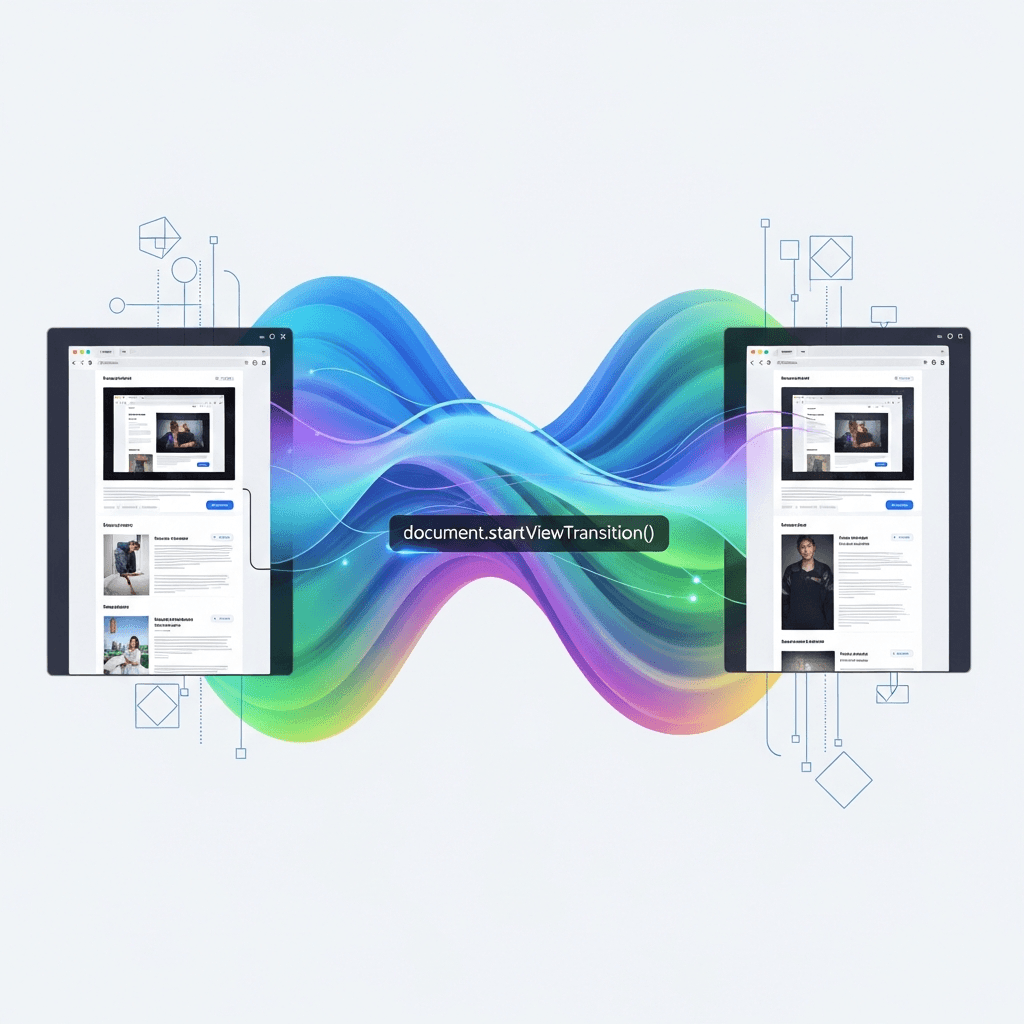
Enter the View Transitions API. This powerful web platform feature, initially designed for Single-Page Applications (SPAs) and now extended to Multi-Page Applications (MPAs), offers a declarative and highly performant way to animate DOM changes. It bridges the gap between static page loads and dynamic, fluid interactions, allowing developers to create elegant visual continuity that significantly enhances user perception and engagement. Imagine a product image smoothly expanding into a detail view, or a list item gracefully sliding into a new position – the View Transitions API makes these once complex animations straightforward to implement, transforming mundane interactions into memorable experiences.
This comprehensive guide will delve deep into the View Transitions API, covering its core concepts, practical implementation in both SPAs and MPAs, advanced customization techniques, and best practices to ensure your web applications are not just functional, but truly seamless.
Prerequisites
To get the most out of this guide, a foundational understanding of the following web technologies is recommended:
- HTML: Basic structure and semantics.
- CSS: Styling, selectors, and an understanding of CSS animations (
@keyframes). - JavaScript: DOM manipulation, asynchronous operations (Promises).
- Modern Browser: The View Transitions API is currently well-supported in Chromium-based browsers (Chrome 111+ for SPAs, Chrome 115+ for MPAs). Firefox and Safari are actively working on implementations.
What is the View Transitions API?
The View Transitions API provides a mechanism to animate changes to the DOM. Instead of manually tracking elements and applying complex JavaScript animation libraries, the API handles the intricate details of creating a smooth transition between two different visual states of your web page.
At its core, the API works by:
- Snapshotting: When a transition is initiated, the browser takes a "snapshot" of the current (old) state of the DOM.
- DOM Update: Your JavaScript code or browser navigation then updates the DOM to its new state.
- Second Snapshot: The browser takes another snapshot of the new state.
- Pseudo-elements: The API then cleverly inserts a set of pseudo-elements into a dedicated
::view-transitionpseudo-root. These pseudo-elements represent the old and new states of the content that changed. - Animation: Using these pseudo-elements, you can apply standard CSS animations to smoothly transition from the old snapshot to the new snapshot, creating the illusion of a continuous transformation rather than an abrupt switch.
This approach decouples the animation logic from the DOM update logic, simplifying development and improving performance by leveraging the browser's optimized rendering pipeline.
Getting Started: Basic SPA Transition
Let's start with the simplest use case: animating a change within a Single-Page Application (SPA). This involves using document.startViewTransition().
HTML Structure
We'll have a simple content area that we want to update.
<div id="content-area">
  <p>This is the initial content.</p>
</div>
<button id="update-button">Update Content</button>
JavaScript to Trigger a Transition
const contentArea = document.getElementById('content-area');
const updateButton = document.getElementById('update-button');
let contentIndex = 0;
const contents = [
  "This is the updated content, state 1.",
  "And here's the content for state 2, which is a bit longer.",
  "Finally, a third piece of content to cycle through."
];

updateButton.addEventListener('click', () => {
  // Check if View Transitions are supported
  if (!document.startViewTransition) {
    contentArea.innerHTML = `<p>${contents[contentIndex]}</p>`;
    contentIndex = (contentIndex + 1) % contents.length;
    return;
  }

  // Start the view transition
  document.startViewTransition(() => {
    // The DOM update function
    contentArea.innerHTML = `<p>${contents[contentIndex]}</p>`;
    contentIndex = (contentIndex + 1) % contents.length;
  });
});
In this code, document.startViewTransition() takes a callback function. Whatever DOM changes happen inside this callback will be part of the transition. The browser takes a snapshot before the callback, and after the callback completes, then animates the difference.
Default CSS Animation
Even without any custom CSS, modern browsers provide a default fade animation. The API automatically creates a set of pseudo-elements:
::view-transition: The root pseudo-element for the transition.::view-transition-group(root): Contains the old and new views of the entire document.::view-transition-image-pair(root): Contains the old and new snapshots.::view-transition-old(root): The snapshot of the old view.::view-transition-new(root): The snapshot of the new view.
By default, ::view-transition-old(root) fades out, and ::view-transition-new(root) fades in.
Understanding view-transition-name
The real power of View Transitions comes from identifying specific elements that should be treated as the "same element" across different states, even if their position, size, or content changes. This is achieved using the view-transition-name CSS property.
When an element has a view-transition-name, the browser treats it specially. Instead of just fading out the old content and fading in the new, it attempts to animate the transformation of that specific element from its old position/size to its new position/size.
Example: Animating a Shared Element
Let's say we have a profile card where clicking it expands into a full detail view. The avatar image should smoothly transition.
<!-- Initial state (e.g., in a list of cards) -->
<div class="profile-card">
  <img src="avatar.jpg" alt="User Avatar" style="view-transition-name: user-avatar;">
  <h3>John Doe</h3>
  <button onclick="showDetail()">View Profile</button>
</div>

<!-- Detail state (hidden initially) -->
<div id="profile-detail" style="display: none;">
  <img src="avatar.jpg" alt="User Avatar" class="detail-avatar" style="view-transition-name: user-avatar;">
  <h1>John Doe</h1>
  <p>Software Engineer with a passion for web technologies...</p>
  <button onclick="hideDetail()">Back</button>
</div>
Notice that both the small avatar and the large avatar have style="view-transition-name: user-avatar;". This tells the browser they are conceptually the same element.
JavaScript for Shared Element Transition
function showDetail() {
  if (!document.startViewTransition) {
    document.querySelector('.profile-card').style.display = 'none';
    document.getElementById('profile-detail').style.display = 'block';
    return;
  }

  document.startViewTransition(() => {
    document.querySelector('.profile-card').style.display = 'none';
    document.getElementById('profile-detail').style.display = 'block';
  });
}

function hideDetail() {
  if (!document.startViewTransition) {
    document.querySelector('.profile-card').style.display = 'block';
    document.getElementById('profile-detail').style.display = 'none';
    return;
  }

  document.startViewTransition(() => {
    document.querySelector('.profile-card').style.display = 'block';
    document.getElementById('profile-detail').style.display = 'none';
  });
}
With view-transition-name applied, the browser will automatically animate the avatar image from its small size and position to its larger size and position, creating a beautiful morphing effect. Other elements without a view-transition-name will use the default fade transition.
Important: view-transition-name must be unique on a page at any given time. If multiple elements have the same name, only the first one found will be used for the transition.
Customizing Transitions with CSS
The real creative control comes from customizing the animations using CSS. The View Transitions API exposes several pseudo-elements that you can target with standard CSS animations (@keyframes).
Targeting Pseudo-elements
When you assign view-transition-name: my-element; to an element, the browser creates a new set of pseudo-elements for that specific element:
::view-transition-group(my-element): The container for the old and new snapshots ofmy-element.::view-transition-image-pair(my-element): Contains the old and new snapshots ofmy-element.::view-transition-old(my-element): The snapshot ofmy-elementin its old state.::view-transition-new(my-element): The snapshot ofmy-elementin its new state.
You can target these with CSS to define custom animations.
Example: Custom Slide and Fade
Let's apply a custom slide animation for our content area example.
/* Define custom keyframes */
@keyframes slide-in {
  from { transform: translateX(100%); opacity: 0; }
  to { transform: translateX(0); opacity: 1; }
}

@keyframes slide-out {
  from { transform: translateX(0); opacity: 1; }
  to { transform: translateX(-100%); opacity: 0; }
}

/* Apply animations to the pseudo-elements */
::view-transition-old(content-area) {
  animation: 300ms cubic-bezier(0.4, 0, 0.2, 1) both slide-out;
}

::view-transition-new(content-area) {
  animation: 300ms cubic-bezier(0.4, 0, 0.2, 1) both slide-in;
}

/* Assign view-transition-name to the content container */
#content-area {
  view-transition-name: content-area;
  overflow: hidden; /* Important for sliding content */
}
In this example, we gave #content-area a view-transition-name. Then, we targeted its ::view-transition-old and ::view-transition-new pseudo-elements with custom @keyframes animations. The both keyword in animation ensures the element retains its final state after the animation.
Advanced SPA Transitions: Shared Elements & Layout Changes
Beyond simple fades or slides, the View Transitions API excels at animating complex layout changes, such as reordering items in a grid or expanding/collapsing sections.
Animating List Reordering
Consider a list where items can be dynamically reordered. Without View Transitions, the items would just jump to their new positions. With view-transition-name, they can animate their movement.
<ul id="item-list">
  <li style="view-transition-name: item-1;">Item 1</li>
  <li style="view-transition-name: item-2;">Item 2</li>
  <li style="view-transition-name: item-3;">Item 3</li>
</ul>
<button id="shuffle-button">Shuffle List</button>const itemList = document.getElementById('item-list');
const shuffleButton = document.getElementById('shuffle-button');
shuffleButton.addEventListener('click', () => {
if (!document.startViewTransition) {
shuffleDOM();
return;
}
document.startViewTransition(() => {
shuffleDOM();
});
});
function shuffleDOM() {
const items = Array.from(itemList.children);
for (let i = items.length - 1; i > 0; i--) {
const j = Math.floor(Math.random() * (i + 1));
itemList.insertBefore(items[j], items[i]);
}
}When shuffleDOM() reorders the <li> elements, because each <li> has a unique view-transition-name, the browser will automatically calculate their start and end positions and animate them smoothly across the grid. This is often referred to as a FLIP (First, Last, Invert, Play) animation, which the View Transitions API handles implicitly for elements with matching view-transition-names.
View Transitions in Multi-Page Applications (MPAs)
Initially, the View Transitions API was limited to SPAs, requiring document.startViewTransition() to be explicitly called. However, a significant enhancement now allows it to work seamlessly across full page navigations in MPAs, requiring almost no JavaScript.
How it Works for MPAs
For MPAs, the browser automatically initiates a view transition when a navigation occurs (e.g., clicking a link, submitting a form, or using history.back()). The key is to signal to the browser that a transition should happen and to identify shared elements.
- CSS
view-transition-name: You still use theview-transition-nameCSS property to identify elements that should transition across pages. - Meta Tag / HTTP Header: You need to tell the browser that the page supports view transitions. This is typically done with a meta tag:
Or via an HTTP header:html
<meta name="view-transition" content="same-origin">View-Transition: same-origin
When a navigation occurs between two pages that both declare view-transition: same-origin and have elements with matching view-transition-names, the browser will automatically perform the snapshotting and animation.
Example: MPA Page Navigation
page1.html
<!DOCTYPE html>
<html>
<head>
  <title>Page 1</title>
  <meta name="view-transition" content="same-origin">
  <link rel="stylesheet" href="styles.css">
</head>
<body>
  <h1 style="view-transition-name: page-title;">Welcome to Page 1</h1>
  <div class="hero-image-container">
    <img src="hero-small.jpg" alt="Small Hero" style="view-transition-name: hero-image;">
  </div>
  <p>Click the link to go to Page 2.</p>
  <a href="page2.html">Go to Page 2</a>
</body>
</html>
page2.html
<!DOCTYPE html>
<html>
<head>
  <title>Page 2</title>
  <meta name="view-transition" content="same-origin">
  <link rel="stylesheet" href="styles.css">
</head>
<body>
  <h1 style="view-transition-name: page-title;">Detail Page 2</h1>
  <div class="hero-image-container-lg">
    <img src="hero-large.jpg" alt="Large Hero" style="view-transition-name: hero-image;">
  </div>
  <p>This is the detail content for Page 2.</p>
  <a href="page1.html">Back to Page 1</a>
</body>
</html>
styles.css
/* Default fade for root */
::view-transition-old(root) {
  animation: fade-out 0.3s ease-out forwards;
}
::view-transition-new(root) {
  animation: fade-in 0.3s ease-in forwards;
}

@keyframes fade-in {
  from { opacity: 0; }
  to { opacity: 1; }
}
@keyframes fade-out {
  from { opacity: 1; }
  to { opacity: 0; }
}

/* Shared hero image transition */
img[style*="view-transition-name: hero-image"] {
  width: 100px; /* Example size for small hero */
  height: auto;
  border-radius: 8px;
  object-fit: cover;
}

.hero-image-container-lg img {
  width: 400px; /* Example size for large hero */
  height: 300px;
}

/* Shared title transition */
h1[style*="view-transition-name: page-title"] {
  font-size: 2em;
  color: #333;
}

body:has(.hero-image-container-lg) h1[style*="view-transition-name: page-title"] {
  font-size: 3em;
  color: #007bff;
}
When navigating between page1.html and page2.html, the h1 and img elements will smoothly animate their position, size, and even style changes (like font size and color for the h1), while the rest of the page content fades in/out. This is incredibly powerful for creating a native-app feel in traditional websites.
Handling Asynchronous Updates and Promises
In SPAs, DOM updates often involve asynchronous operations like data fetching. The document.startViewTransition() method returns a ViewTransition object that provides promises to help manage these scenarios.
const transition = document.startViewTransition(async () => {
  // 1. Perform DOM updates, potentially asynchronous
  const newData = await fetchNewContent(); // Simulate API call
  contentArea.innerHTML = `<p>${newData}</p>`;
});

// Promises available:
// `transition.ready`: resolves when pseudo-elements are created (snapshots taken).
// `transition.updateCallbackDone`: resolves when the DOM update callback finishes.
// `transition.finished`: resolves when the entire animation completes.

transition.ready.then(() => {
  console.log('Snapshots are ready, CSS animations can begin.');
});

transition.updateCallbackDone.then(() => {
  console.log('DOM update is complete.');
});

transition.finished.then(() => {
  console.log('View transition animation has fully completed.');
});

async function fetchNewContent() {
  return new Promise(resolve => {
    setTimeout(() => {
      resolve(`Fetched content at ${new Date().toLocaleTimeString()}`);
    }, 500); // Simulate network delay
  });
}
This allows you to orchestrate complex interactions, for instance, showing a loading spinner while updateCallbackDone is pending, or performing post-animation cleanup when finished resolves. The browser will wait for the promise returned by your update callback to resolve before taking the second snapshot, ensuring the animation happens with the final DOM state.
Accessibility Considerations
While animations enhance the experience for many, they can be a source of discomfort or even health issues for others. It's crucial to respect user preferences for reduced motion.
prefers-reduced-motion
The prefers-reduced-motion media query allows users to indicate they prefer less motion on the web. You should integrate this into your View Transitions CSS.
/* Default animations */
::view-transition-old(root) {
  animation: fade-out 0.3s ease-out forwards;
}
::view-transition-new(root) {
  animation: fade-in 0.3s ease-in forwards;
}

@media (prefers-reduced-motion) {
  /* Disable or simplify animations for users who prefer reduced motion */
  ::view-transition-old(root) {
    animation: none;
  }
  ::view-transition-new(root) {
    animation: none;
  }

  /* Or provide a very subtle fade */
  /*
  ::view-transition-old(root) {
    animation: fade-out 0.05s linear forwards;
  }
  ::view-transition-new(root) {
    animation: fade-in 0.05s linear forwards;
  }
  */
}
For JavaScript-triggered transitions, you might also conditionally call startViewTransition:
const prefersReducedMotion = window.matchMedia('(prefers-reduced-motion: reduce)').matches;

if (document.startViewTransition && !prefersReducedMotion) {
  document.startViewTransition(() => {
    // ... DOM update ...
  });
} else {
  // ... immediate DOM update without transition ...
}
Always ensure that the content remains accessible and understandable even if transitions are disabled. Transitions should be an enhancement, not a requirement for usability.
Best Practices for View Transitions
To effectively leverage the View Transitions API, consider these best practices:
- Be Purposeful: Don't animate everything. Use transitions to guide the user's eye, indicate relationships between elements, or provide feedback on actions. Overuse can be distracting.
- Keep it Subtle: Most transitions should be fast and understated. Default browser animations are often a good starting point. Aim for 200-500ms durations.
- Strategic
view-transition-name: Assignview-transition-nameonly to elements that truly represent a shared concept across states (e.g., hero images, avatars, titles, cards). Avoid giving unique names to every single element, as this can lead to performance issues and visual clutter. - Optimize Performance: While the API is performant, animating very large or numerous elements can still impact frame rates. Test on lower-end devices. Use
will-changeif necessary, but sparingly. - Progressive Enhancement: Design your site to work perfectly without View Transitions. They should be an enhancement layered on top, not a core dependency. This ensures broad browser compatibility and robustness.
- Avoid Layout Jumps: Ensure the old and new states of an element with
view-transition-nameare visually consistent in terms of content and aspect ratio where possible to prevent jarring jumps during the transition. - Use
overflow: hidden: For container elements that slide or expand,overflow: hiddenis often crucial to prevent content from spilling out during the animation. - Test Across Browsers (and States): While primarily Chromium-focused now, be mindful of future cross-browser compatibility. Also, test transitions in various scenarios: forward navigation, back navigation, fast clicks, and slow network conditions.
- Leverage
::view-transition-group: This pseudo-element is useful for applying common transformations (like a fade) to an entire transitioning group, rather than individualoldandnewsnapshots.
Common Pitfalls and Troubleshooting
Even with a powerful API, you might encounter some common issues:
- Elements Disappearing/Reappearing Unexpectedly: If an element has a
view-transition-namebut disappears from the DOM in the new state, or appears in the new state without existing in the old, it will typically just fade in/out. Ensure elements withview-transition-nameare present in both DOM states if you expect a smooth morphing animation. - Conflicting
view-transition-nameValues: Remember,view-transition-namemust be unique on the page at any given time. If two elements have the same name, the browser's behavior might be unpredictable, usually favoring the first one encountered. - Performance Issues: If transitions are janky, check for:
- Animating too many elements simultaneously.
- Animating very large images or complex SVG paths.
- Complex CSS properties that force layout recalculations on every frame (e.g.,
width,heighton many elements). - Consider simplifying animations or reducing the number of
view-transition-nameelements.
- Debugging Pseudo-elements: Browser developer tools (e.g., Chrome DevTools) are essential. During an active transition, look in the Elements panel for the
::view-transitionpseudo-root and its children. You can inspect their computed styles and even modify them live to debug animations. - Content Flash/Flicker: Sometimes, you might see a brief flash of the old or new content before the transition starts. This can happen if your DOM update is very fast or if there's a style conflict. Ensure your CSS for
::view-transition-oldand::view-transition-newcovers the full duration of the animation. - Incorrect Stacking Context: If elements appear above or below where they should be during a transition, it's often a
z-indexor stacking context issue. The::view-transitionpseudo-elements are placed on a separate layer, so ensure your regular page content'sz-indexis managed appropriately, especially if you have sticky or fixed elements.
Conclusion
The View Transitions API marks a significant leap forward in web development, empowering developers to create web experiences that are not only functional but also visually captivating and intuitive. By providing a declarative and performant way to animate DOM changes, it transforms the often abrupt nature of web navigation into a seamless, native-like flow.
Whether you're building a sleek Single-Page Application or enhancing a traditional Multi-Page Application, mastering this API will allow you to craft user interfaces that feel polished, responsive, and truly delightful. From subtle fades to complex shared element morphs, the possibilities are vast.
As browser support continues to expand, the View Transitions API is poised to become a fundamental tool in every frontend developer's toolkit. Start experimenting today, and unlock a new dimension of fluidity and elegance in your web projects. The future of smooth web experiences is here, and it's more accessible than ever before.
Written by
CodewithYohaFull-Stack Software Engineer with 7+ years of experience in Java, Spring Boot, and cloud architecture across AWS, Azure, and GCP. Writing production-grade engineering patterns for developers who ship real software.