Introduction
For years, creating captivating scroll-based animations on the web was largely the domain of JavaScript. Libraries like GSAP's ScrollTrigger, ScrollReveal, or manual Intersection Observer implementations became indispensable tools for developers aiming to add dynamic visual flair to their sites. While incredibly powerful, these JavaScript-centric approaches often introduced complexities, potential performance bottlenecks, and a steeper learning curve, especially for simpler effects.
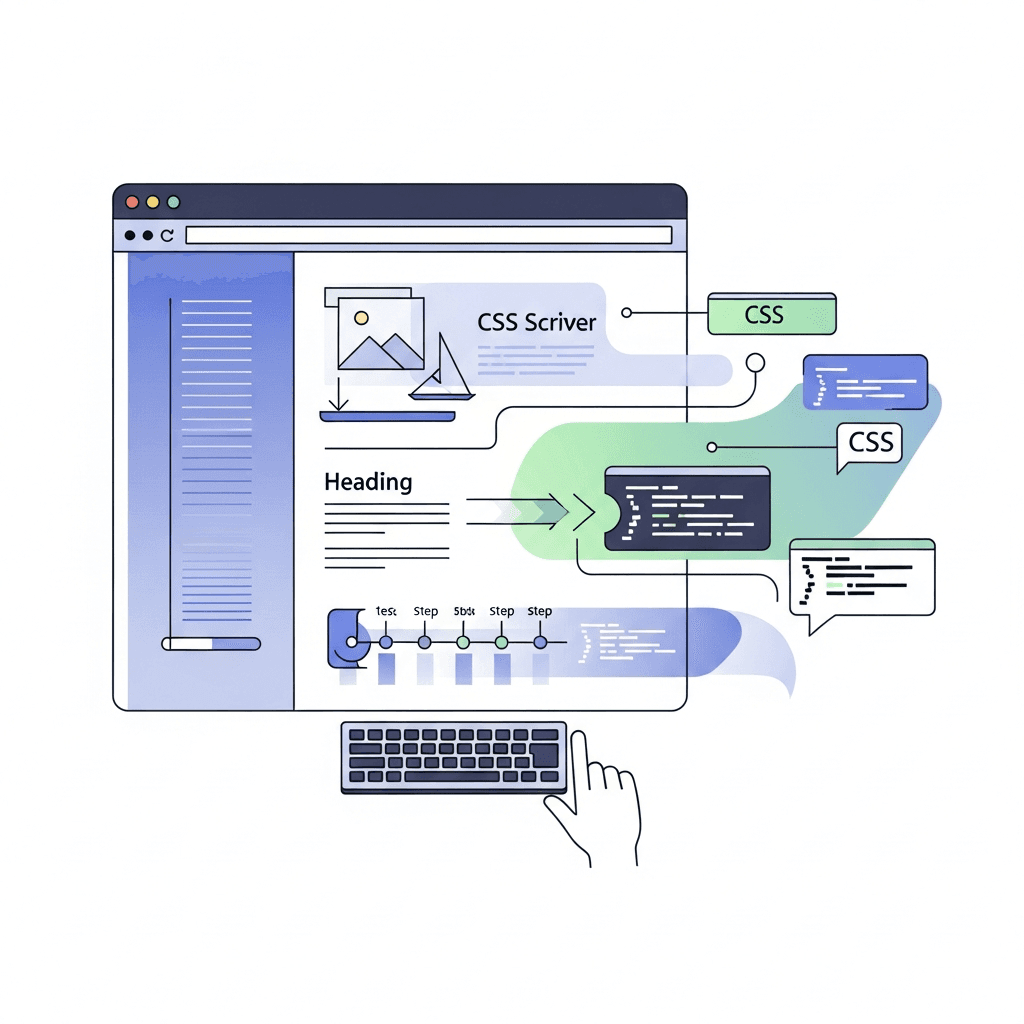
Enter CSS Scroll-Driven Animations (SDA). A groundbreaking native browser feature, SDA allows developers to declaratively link CSS animations to the scroll position of a scroll container or the visibility of an element within its scrollport. This innovation shifts the paradigm, enabling highly performant, jank-free, and inherently synchronized scroll effects directly within your stylesheets. Imagine a reading progress bar, parallax effects, or elements fading in as they enter the viewport – all controlled by pure CSS, off the main thread, and with minimal effort.
This comprehensive guide will take you on a deep dive into the world of advanced CSS Scroll-Driven Animations. We'll explore the core concepts, dissect practical use cases, provide detailed code examples, and discuss best practices to help you integrate these powerful techniques into your projects. By the end, you'll be equipped to create stunning, performant, and accessible scroll experiences that elevate your web designs.
Prerequisites
To get the most out of this guide, you should have:
- A solid understanding of HTML and CSS fundamentals.
- Familiarity with CSS
@keyframesanimations. - Basic knowledge of CSS custom properties (variables).
- A modern browser (e.g., Chrome 115+, Edge 115+, Safari Technology Preview) that supports CSS Scroll-Driven Animations for testing the examples.
The Evolution of Scroll Animations & The scroll-timeline API
Before native CSS SDA, JavaScript was the go-to for scroll effects. Developers would listen to the scroll event, calculate element positions, and dynamically update CSS properties. This often led to performance issues, especially on less powerful devices, as scroll events fire frequently and trigger expensive layout recalculations and repaints on the main thread.
Modern JS libraries mitigated some of these issues by using techniques like requestAnimationFrame and Intersection Observer for more efficient detection of element visibility. However, even with these optimizations, the logic remained in JavaScript, adding overhead and complexity.
CSS Scroll-Driven Animations fundamentally change this by moving the entire animation logic into the browser's rendering engine. By defining a scroll-timeline or view-timeline, you tell the browser: "Hey, instead of a time-based animation, drive this animation based on scroll progress or element visibility." The browser then handles the synchronization and interpolation efficiently, often on a separate thread, leading to smoother animations.
Introduction to scroll-timeline and view-timeline
These are the two primary mechanisms for defining scroll-driven timelines:
scroll-timeline: Creates a timeline based on the scroll progress of a specific scroll container (or the document's root scroller). As the scroll position changes, the animation progresses.view-timeline: Creates a timeline based on an element's visibility within its scrollport. The animation progresses as the element enters, crosses, or exits the scrollport.
Let's dive into their properties.
Core Concepts: scroll-timeline and view-timeline Explained
Understanding these two property groups is crucial for harnessing CSS SDA.
scroll-timeline Properties
These properties are applied to the scroll container that will drive the animation:
scroll-timeline-name: A custom identifier for your scroll timeline (e.g.,my-scroll-progress).scroll-timeline-axis: Specifies which axis of scrolling should drive the animation. Can beblock(vertical, default),inline(horizontal), orboth.
Example: Defining a global scroll timeline for the document body.
body {
  scroll-timeline-name: --document-scroll;
  scroll-timeline-axis: block;
  /* Ensure body is scrollable if it's the main scroller */
  min-height: 200vh;
}
view-timeline Properties
These properties are applied to the element whose visibility within its scrollport will drive the animation:
view-timeline-name: A custom identifier for your view timeline (e.g.,item-visibility).view-timeline-axis: Similar toscroll-timeline-axis, specifies the axis of the scrollport that affects visibility.view-timeline-inset: An optional property that allows you to shrink or grow the effective scrollport area for visibility detection. Acceptstop,right,bottom,leftvalues, or a single value for all sides. Useful for fine-tuning when an element is considered "in view".
Example: Defining a view timeline for a specific section.
.reveal-section {
  view-timeline-name: --section-reveal;
  view-timeline-axis: block;
  /* Start animation slightly before it's fully visible */
  view-timeline-inset: 10% 0% 10% 0%;
}
Binding Animations with animation-timeline
Once a timeline is defined, you need to link a standard @keyframes animation to it using the animation-timeline property. This property replaces the traditional animation-duration and animation-delay in the context of scroll-driven animations, as the animation's progress is now tied to the scroll position, not time.
animation-timeline: <timeline-name>;: The name of thescroll-timelineorview-timelineyou want to use.animation-range: This is a powerful property that defines which part of the timeline progress should drive the animation. It allows for precise control over when an animation starts and ends within the timeline's lifecycle. Its values can be keywords, percentages, or lengths.
animation-range Keywords
normal: The animation plays over the entire duration of the timeline (default forscroll-timeline).cover: The animation plays from when the element is first visible in the scrollport until it's completely out of view (default forview-timeline).contain: The animation plays from when the element is fully visible until it's completely out of view.entry: The animation plays as the element enters the scrollport.exit: The animation plays as the element exits the scrollport.start: The animation plays from the start of the scrollport until the element's start edge aligns with the scrollport's start edge.end: The animation plays from the end of the scrollport until the element's end edge aligns with the scrollport's end edge.
animation-range with Percentages and Lengths
You can also specify exact start and end points using percentages or lengths relative to the scrollport or element:
animation-range: entry 0% entry 100%;: Animation plays from when the element's entry edge first touches the scrollport to when it completely enters.animation-range: cover 0% cover 50%;: Animation plays during the first half of the element's cover phase.animation-range: 200px 400px;: Animation plays when the scroll container has scrolled between 200px and 400px.
Example: Fading in an element as it enters the viewport.
<div class="scroll-container">
  <div class="item-to-reveal">Reveal Me!</div>
  <div class="spacer"></div>
</div>.scroll-container {
height: 300px;
overflow-y: scroll;
border: 1px solid #ccc;
}
.item-to-reveal {
opacity: 0;
transform: translateY(20px);
animation: fade-in linear forwards;
animation-timeline: --item-reveal;
/* Start fading when 20% of the item enters, end when 80% enters */
animation-range: entry 20% entry 80%;
}
/* Define the view timeline on the element itself */
.item-to-reveal {
view-timeline-name: --item-reveal;
view-timeline-axis: block;
}
@keyframes fade-in {
from {
opacity: 0;
transform: translateY(20px);
}
to {
opacity: 1;
transform: translateY(0);
}
}
.spacer {
height: 800px; /* To make the container scrollable */
}Practical Use Case 1: Reading Progress Bar
A common UX pattern is a progress bar that indicates how far down a user has scrolled on a page, often found in long articles or documentation. This is a perfect candidate for scroll-timeline.
How it Works
- Define a
scroll-timelineon thebodyorhtmlelement, representing the entire document's scroll progress. - Create a fixed element (e.g., a
div) at the top of the viewport to serve as the progress bar. - Apply a
@keyframesanimation to this progress bar that widens it from 0% to 100%. - Link this animation to the
scroll-timelineusinganimation-timelineandanimation-range: normal(or omitanimation-rangeasnormalis the default forscroll-timeline).
Code Example
<header class="progress-header">
  <div class="progress-bar"></div>
</header>

<main>
  <h1>My Long Article Title</h1>
  <p>Lorem ipsum dolor sit amet, consectetur adipiscing elit...</p>
  <!-- Add lots of content here to make the page scrollable -->
  <p>...</p>
  <p>Finishing up the article content.</p>
</main>/* 1. Define scroll-timeline on the root scroller */
html {
scroll-timeline-name: --document-progress;
scroll-timeline-axis: block;
}
body {
margin: 0;
font-family: sans-serif;
padding-top: 50px; /* Space for the fixed header */
}
/* 2. Style the fixed header and progress bar */
.progress-header {
position: fixed;
top: 0;
left: 0;
width: 100%;
height: 50px;
background-color: #f0f0f0;
box-shadow: 0 2px 5px rgba(0, 0, 0, 0.1);
z-index: 1000;
}
.progress-bar {
height: 5px;
background-color: #007bff;
width: 0%;
position: absolute;
bottom: 0;
left: 0;
}
/* 3. Define the animation */
@keyframes grow-width {
from {
width: 0%;
}
to {
width: 100%;
}
}
/* 4. Link animation to timeline */
.progress-bar {
animation: grow-width linear forwards;
animation-timeline: --document-progress;
}
main {
max-width: 800px;
margin: 0 auto;
padding: 20px;
line-height: 1.6;
/* Make sure there's enough content to scroll */
min-height: 200vh;
}Practical Use Case 2: Parallax Scrolling Effects
Parallax scrolling, where background content moves at a different speed than foreground content, has always been a visually appealing effect. Traditionally, it's been a performance hog due to constant JavaScript calculations. With view-timeline and transform, we can create smooth, native parallax.
How it Works
- Wrap your parallax section with a container that establishes a
view-timelinefor its child elements. - For elements that should exhibit parallax, apply a
transform: translateY()animation. - Link this animation to the parent's
view-timeline. - Adjust
animation-rangeandtransformvalues to control the speed and direction of the parallax effect.
Code Example
<section class="hero-section">
  <div class="parallax-bg"></div>
  <h2 class="parallax-text">Explore New Horizons</h2>
</section>

<section class="content-section">
  <p>More content to ensure scrolling...</p>
  <div style="height: 800px;"></div>
</section>body {
margin: 0;
font-family: sans-serif;
}
.hero-section {
height: 100vh;
display: flex;
flex-direction: column;
justify-content: center;
align-items: center;
position: relative;
overflow: hidden; /* Important for containing parallax children */
/* Define the view timeline for children to react to this section's visibility */
view-timeline-name: --hero-view;
view-timeline-axis: block;
}
.parallax-bg {
position: absolute;
top: 0;
left: 0;
width: 100%;
height: 120%; /* Make it taller to allow for movement */
background: url('https://picsum.photos/id/1015/1600/900') no-repeat center center/cover;
z-index: -1;
/* Apply animation */
animation: move-bg linear forwards;
animation-timeline: --hero-view;
/* Move background slower than foreground */
animation-range: entry 0% exit 100%;
}
.parallax-text {
font-size: 3em;
color: white;
text-shadow: 2px 2px 4px rgba(0, 0, 0, 0.5);
z-index: 1;
/* Apply animation */
animation: move-text linear forwards;
animation-timeline: --hero-view;
/* Move text slightly faster or in opposite direction */
animation-range: entry 0% exit 100%;
}
@keyframes move-bg {
from {
transform: translateY(-10%); /* Start slightly above */
}
to {
transform: translateY(10%); /* End slightly below */
}
}
@keyframes move-text {
from {
transform: translateY(20px);
}
to {
transform: translateY(-20px);
}
}
.content-section {
padding: 50px;
background-color: #f8f8f8;
}Practical Use Case 3: Element Reveal & Staggered Animations
Animating elements into view as a user scrolls down is a powerful way to guide attention and make content feel more dynamic. We can achieve this with view-timeline and combine it with CSS custom properties for elegant staggered effects.
How it Works
- Each element to be revealed gets its own
view-timeline. - A
@keyframesanimation (e.g., fade-in, slide-up) is defined. - The animation is linked to the element's
view-timelineusinganimation-timeline. animation-rangeis set toentryto trigger the animation as the element enters the viewport.- For staggering, use CSS custom properties (
--delay) andanimation-delayin combination withcalc().
Code Example
<div class="container">
  <h2>Our Services</h2>
  <div class="service-card" style="--delay: 0;"><h3>Design</h3><p>Creative solutions.</p></div>
  <div class="service-card" style="--delay: 0.2s;"><h3>Development</h3><p>Robust applications.</p></div>
  <div class="service-card" style="--delay: 0.4s;"><h3>Marketing</h3><p>Reach your audience.</p></div>
  <div class="service-card" style="--delay: 0.6s;"><h3>Support</h3><p>Always here for you.</p></div>
</div>

<div style="height: 800px;"></div>body {
margin: 0;
font-family: sans-serif;
background-color: #f4f4f4;
}
.container {
max-width: 960px;
margin: 50px auto;
padding: 20px;
display: grid;
grid-template-columns: repeat(auto-fit, minmax(250px, 1fr));
gap: 20px;
}
h2 {
grid-column: 1 / -1;
text-align: center;
margin-bottom: 40px;
font-size: 2.5em;
}
.service-card {
background-color: white;
padding: 30px;
border-radius: 8px;
box-shadow: 0 4px 8px rgba(0, 0, 0, 0.1);
text-align: center;
opacity: 0;
transform: translateY(50px);
/* Define individual view timeline for each card */
view-timeline-name: --card-reveal;
view-timeline-axis: block;
/* Link animation */
animation: slide-up-fade-in linear forwards;
animation-timeline: --card-reveal;
/* Trigger when 10% of element enters, finish when 50% enters */
animation-range: entry 10% entry 50%;
/* Stagger using custom property */
animation-delay: var(--delay);
}
@keyframes slide-up-fade-in {
from {
opacity: 0;
transform: translateY(50px);
}
to {
opacity: 1;
transform: translateY(0);
}
}Practical Use Case 4: Image Gallery Scroll Snap & Animation
Combining CSS Scroll-Driven Animations with scroll-snap creates highly interactive and engaging galleries. We can animate captions or overlays based on which image is currently snapped into view.
How it Works
- Set up a scroll container with
scroll-snap-typeand individual items withscroll-snap-align. - Each gallery item (or its content) defines a
view-timeline. - Animate elements within the snapped item (e.g., a caption) to appear/disappear based on the item's
view-timeline. - Use
animation-range: coveror specificentry/exitranges to control when the animation plays during the item's visibility.
Code Example
<div class="gallery-wrapper">
  <div class="image-gallery">
    <div class="gallery-item">
      <img src="https://picsum.photos/id/1043/800/600" alt="Forest Stream">
      <div class="caption"><h3>Forest Stream</h3><p>Tranquil waters.</p></div>
    </div>
    <div class="gallery-item">
      <img src="https://picsum.photos/id/1040/800/600" alt="Mountain Peak">
      <div class="caption"><h3>Mountain Peak</h3><p>Majestic views.</p></div>
    </div>
    <div class="gallery-item">
      <img src="https://picsum.photos/id/1047/800/600" alt="City Lights">
      <div class="caption"><h3>City Lights</h3><p>Urban sprawl.</p></div>
    </div>
  </div>
</div>body {
margin: 0;
font-family: sans-serif;
background-color: #eee;
}
.gallery-wrapper {
height: 100vh;
display: flex;
justify-content: center;
align-items: center;
padding: 20px;
}
.image-gallery {
width: 100%;
max-width: 900px;
height: 600px;
display: flex;
overflow-x: scroll;
scroll-snap-type: x mandatory;
-webkit-overflow-scrolling: touch;
border-radius: 12px;
box-shadow: 0 10px 20px rgba(0, 0, 0, 0.2);
background-color: #333;
}
.gallery-item {
flex: 0 0 100%; /* Each item takes full width */
scroll-snap-align: center;
position: relative;
display: flex;
justify-content: center;
align-items: center;
overflow: hidden;
/* Define view timeline for each item */
view-timeline-name: --item-snap;
view-timeline-axis: inline;
}
.gallery-item img {
width: 100%;
height: 100%;
object-fit: cover;
display: block;
}
.caption {
position: absolute;
bottom: 0;
left: 0;
width: 100%;
padding: 20px;
background: linear-gradient(to top, rgba(0, 0, 0, 0.7), transparent);
color: white;
text-align: center;
transform: translateY(100%); /* Start hidden */
opacity: 0;
transition: transform 0.3s ease-out, opacity 0.3s ease-out; /* Fallback */
/* Link animation to item's view timeline */
animation: caption-reveal linear forwards;
animation-timeline: --item-snap;
/* Animate from when item is 20% visible to 80% visible */
animation-range: entry 20% entry 80%;
}
.caption h3 {
margin-top: 0;
margin-bottom: 5px;
font-size: 1.8em;
}
.caption p {
margin-bottom: 0;
font-size: 1.1em;
}
@keyframes caption-reveal {
from {
transform: translateY(100%);
opacity: 0;
}
to {
transform: translateY(0%);
opacity: 1;
}
}Practical Use Case 5: Sticky Elements with Dynamic Styling
Sticky headers or navigation bars are common, but often lack dynamic styling changes when they actually become 'stuck'. CSS SDA can detect this state change and apply animations.
How it Works
This is a more subtle but powerful use case. When an element with position: sticky becomes sticky, its position relative to its scrollport changes. We can leverage this to create a view-timeline on the sticky element itself and animate based on its own visibility within its sticky container.
- Create a sticky element (e.g., a header) within a scrollable parent.
- Define a
view-timelineon the sticky element. - Create a
@keyframesanimation to change its style (background, shadow, text color). - Link the animation using
animation-timelineand carefully chooseanimation-rangeto trigger when the element becomes sticky (e.g., when its top edge is at0pxrelative to the scrollport).
Code Example
<div class="scroll-area">
  <header class="sticky-header">
    <h1>My Awesome Website</h1>
    <nav>
      <a href="#">Home</a>
      <a href="#">About</a>
      <a href="#">Services</a>
    </nav>
  </header>
  <div class="content-block">
    <p>Scroll down to see the header change!</p>
    <div style="height: 100vh;"></div>
    <p>This is some content below the initial fold. The header is now sticky and animated.</p>
    <div style="height: 100vh;"></div>
    <p>More content...</p>
  </div>
</div>body {
margin: 0;
font-family: sans-serif;
}
.scroll-area {
height: 100vh; /* Make the body itself scrollable */
overflow-y: auto;
/* Define a scroll timeline for the container if you want to use scroll-timeline */
/* scroll-timeline-name: --container-scroll; */
/* scroll-timeline-axis: block; */
}
.sticky-header {
position: sticky;
top: 0;
background-color: #fff;
padding: 15px 20px;
display: flex;
justify-content: space-between;
align-items: center;
box-shadow: 0 0 0 rgba(0, 0, 0, 0);
transition: box-shadow 0.3s ease; /* Fallback for non-SDA browsers */
z-index: 100;
/* Define a view timeline for the sticky header itself */
view-timeline-name: --sticky-header-view;
view-timeline-axis: block;
/* Link animation */
animation: header-style-change linear forwards;
animation-timeline: --sticky-header-view;
/* Animation starts when the header's top edge is 0px from viewport top */
/* and ends when its top edge moves past 0px (i.e., when it's unstuck) */
animation-range: entry 0% exit 0%;
}
.sticky-header h1 {
margin: 0;
font-size: 1.8em;
color: #333;
}
.sticky-header nav a {
text-decoration: none;
color: #555;
margin-left: 20px;
font-weight: bold;
}
.content-block {
padding: 20px;
line-height: 1.6;
min-height: 250vh; /* Ensure enough content to scroll */
}
@keyframes header-style-change {
from {
box-shadow: 0 0 0 rgba(0, 0, 0, 0);
background-color: #fff;
color: #333;
}
to {
box-shadow: 0 2px 10px rgba(0, 0, 0, 0.1);
background-color: #f8f8f8;
color: #1a1a1a;
}
}Note: The animation-range: entry 0% exit 0% for a sticky element means the animation will play its full range when the element's top edge enters the scrollport at 0% (i.e., becomes sticky) and reverse when its top edge exits 0% (i.e., becomes unstuck). This creates a toggle-like effect.
Advanced animation-range & Custom Properties
The true power of animation-range comes from its flexibility with percentages and lengths, combined with CSS custom properties. This allows for incredibly fine-tuned control.
Fine-tuning with Percentages and Lengths
Instead of keywords, you can specify exact start and end points:
animation-range: 100px 300px;(forscroll-timeline): Animation runs when the scroll container has scrolled between 100px and 300px.animation-range: entry 25% exit 75%;(forview-timeline): Animation runs from when 25% of the element has entered the scrollport until 75% of it has exited.animation-range: contain 0% contain 100%;: Animation runs precisely when the element is fully contained within the scrollport.
Leveraging CSS Custom Properties
Custom properties (--my-var) are invaluable for creating reusable and configurable animations. You can define them on parent elements and use them to control animation-delay, animation-range values, or even @keyframes values (though the latter is more advanced and requires @property).
Consider animating multiple elements with slightly different start/end points:
<div class="animated-item" style="--start-range: 10%; --end-range: 70%;">Item 1</div>
<div class="animated-item" style="--start-range: 20%; --end-range: 80%;">Item 2</div>.animated-item {
opacity: 0;
animation: fade-in linear forwards;
animation-timeline: --parent-scroll-timeline; /* Assuming a parent timeline */
animation-range: entry var(--start-range, 0%) entry var(--end-range, 100%);
}This pattern allows for highly dynamic and configurable animations without duplicating entire CSS rules.
Browser Support & Fallbacks
CSS Scroll-Driven Animations are a relatively new feature. As of late 2023/early 2024:
- Chrome/Edge: Fully supported (version 115+).
- Safari: Supported in Technology Preview, expected in stable releases soon.
- Firefox: Currently under development.
For production, it's crucial to consider graceful degradation for browsers that don't yet support SDA.
Using @supports
The @supports CSS rule is your best friend for progressive enhancement:
/* Default styles for all browsers (no animation) */
.item-to-reveal {
  opacity: 1; /* Default to visible */
  transform: translateY(0);
}

@supports (animation-timeline: --test) {
  /* Styles applied ONLY if CSS SDA is supported */
  .item-to-reveal {
    opacity: 0; /* Start hidden for animation */
    transform: translateY(20px);
    animation: slide-up-fade-in linear forwards;
    animation-timeline: --item-reveal;
    animation-range: entry 10% entry 50%;
  }
}
This ensures that users on unsupported browsers still see the content, just without the scroll animation. For more complex animations, you might provide a simpler JavaScript fallback within the @supports not (animation-timeline: --test) block.
Best Practices
-
Prioritize Performance: Stick to animating
transformandopacitywhere possible. These properties can often be animated on the compositor thread, leading to smoother results. -
Semantic Timelines: Give your
scroll-timeline-nameandview-timeline-namedescriptive names (e.g.,--main-content-scroll,--section-fade-in). This improves readability and maintainability. -
Accessibility First: Always consider users with motion sensitivities. Provide a way to disable animations, ideally using the
prefers-reduced-motionmedia query:css@media (prefers-reduced-motion) { .animated-element { animation: none !important; opacity: 1 !important; transform: none !important; } } -
Test Thoroughly: Test your scroll animations across different screen sizes, devices, and browser zoom levels. The
view-timeline-insetproperty can be crucial for responsive adjustments. -
Clear Scroll Containers: Ensure your scroll container has
overflow-y: scrolloroverflow-y: auto(oroverflow-xfor horizontal) if it's not the document root. -
Avoid Over-animating: While powerful, too many scroll animations can be distracting. Use them judiciously to enhance the user experience, not overwhelm it.
Common Pitfalls
- Missing
overflowon Scroll Container: If your timeline isn't working, check that the element you intend to be the scroll source actually has scrollbars (overflow: scrolloroverflow: auto). Thehtmlelement is usually the default scroll source if no other is specified. - Incorrect
animation-range: Misunderstandingentry,exit,cover,containor miscalculating percentages/lengths can lead to animations starting/ending at unexpected times. Experiment and visualize the ranges. - Element Visibility Issues: For
view-timeline, ensure the element is actually within the scrollport's normal flow and not hidden bydisplay: noneorvisibility: hiddenbefore it's expected to animate. - Confusing
scroll-timelinewithview-timeline: Rememberscroll-timelineis for the progress of a scroller, whileview-timelineis for the visibility of an element within a scroller. - Forgetting
forwards: If you want your animation to stay at its final state after playing, don't forgetanimation-fill-mode: forwards(or justforwardsin the shorthand). - Not using
lineartiming: For scroll-driven animations,animation-timing-function: linearis often preferred, as it directly maps scroll progress to animation progress, avoiding acceleration/deceleration that might feel disconnected from scrolling speed.
Conclusion
CSS Scroll-Driven Animations represent a significant leap forward in web development. By bringing highly performant, declarative scroll effects directly into CSS, they empower developers to create richer, more engaging user experiences with greater ease and efficiency. From simple reading progress bars to complex parallax and staggered reveal effects, the possibilities are vast.
We've explored the fundamental concepts of scroll-timeline and view-timeline, delved into the intricacies of animation-timeline and animation-range, and provided practical examples for common web design patterns. Remember to prioritize performance, accessibility, and thoughtful implementation to ensure your animations enhance, rather than detract from, the user experience.
The web platform continues to evolve, and CSS SDA is a testament to its ongoing commitment to empowering creators. Start experimenting with these powerful new tools today, and unlock a new dimension of interactivity in your web projects. The future of scroll-driven web animations is here, and it's written in CSS.

Written by
CodewithYohaFull-Stack Software Engineer with 7+ years of experience in Java, Spring Boot, and cloud architecture across AWS, Azure, and GCP. Writing production-grade engineering patterns for developers who ship real software.