
AWS Cost Optimization: Master Downsizing EC2 & RDS for Massive Savings

Introduction
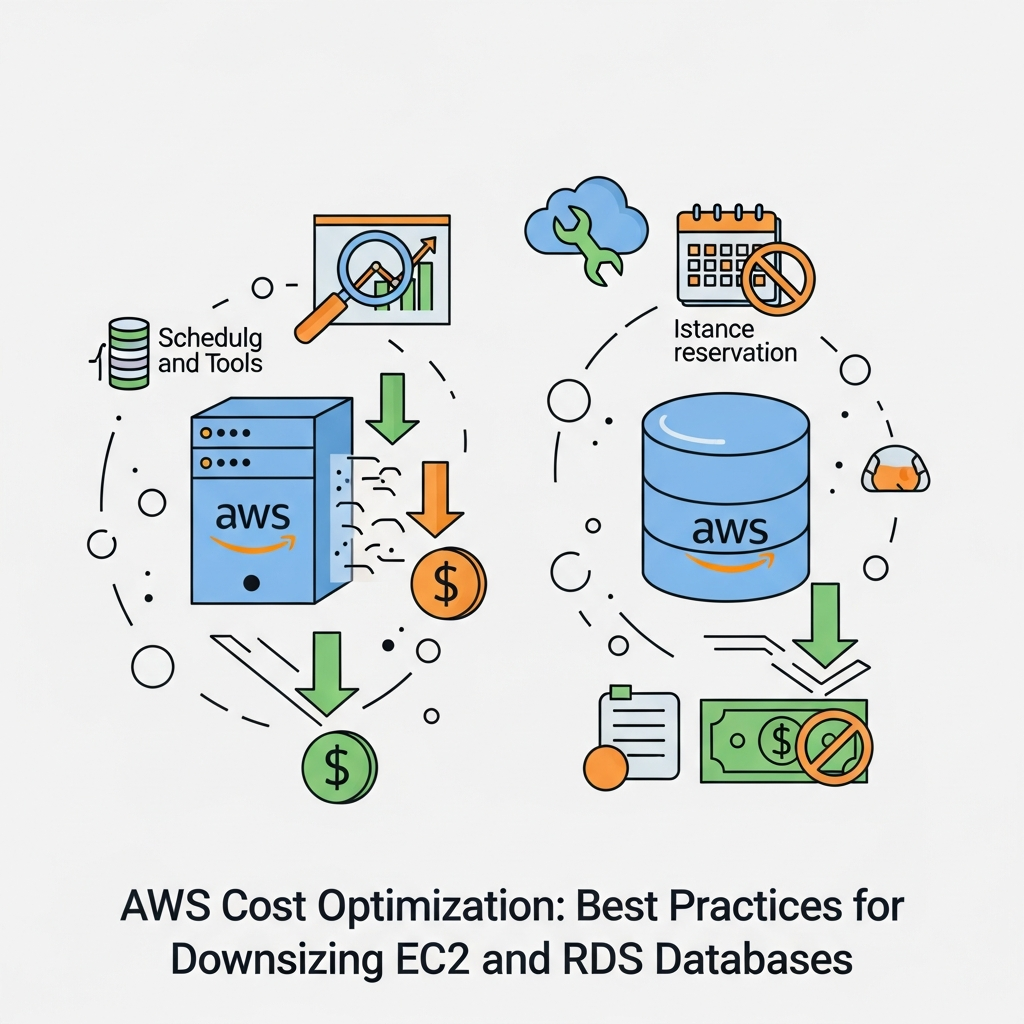
In the dynamic world of cloud computing, agility and scalability are paramount. AWS provides an unparalleled platform for innovation, but with great power comes great responsibility – specifically, the responsibility to manage costs effectively. Many organizations find themselves grappling with escalating AWS bills, often due to over-provisioned resources that are not fully utilized. This comprehensive guide will equip you with the knowledge and tools to tackle one of the most impactful cost optimization strategies: rightsizing, or more specifically, downsizing your Amazon EC2 instances and RDS databases.
Downsizing isn't just about cutting costs; it's about aligning your resource consumption with actual demand, leading to more efficient infrastructure, reduced environmental impact, and a healthier bottom line. We'll dive deep into identifying underutilized resources, the step-by-step process of adjusting their sizes, automating these changes, and establishing best practices for continuous optimization.
Prerequisites
To get the most out of this guide, you should have:
- An active AWS account with appropriate permissions (e.g., AdministratorAccess or specific IAM policies for EC2, RDS, CloudWatch, Cost Explorer, Lambda).
- Basic familiarity with AWS services like EC2, RDS, CloudWatch, and the AWS Management Console.
- Understanding of fundamental database concepts.
- Access to AWS CLI (Command Line Interface) for scripting and automation examples.
Understanding AWS Cost Drivers: EC2 and RDS
Before we optimize, it's crucial to understand what drives costs for EC2 and RDS:
- EC2 Instances: Primary cost drivers include instance type (CPU, memory, network performance), region, operating system, and pricing model (On-Demand, Reserved Instances, Savings Plans, Spot Instances). Associated costs include EBS storage, data transfer, and attached IP addresses.
- RDS Databases: Costs are influenced by DB instance class (CPU, memory), storage type (General Purpose SSD, Provisioned IOPS SSD), allocated storage, I/O operations, data transfer, and backup retention policies.
Our focus will be on optimizing the instance type and storage components, which are often the most significant and easiest to rightsize.
The Importance of Monitoring and Metrics
Effective cost optimization begins with robust monitoring. You cannot optimize what you don't measure. AWS provides powerful tools to gain insights into your resource utilization:
- Amazon CloudWatch: Collects and tracks metrics, monitors log files, and sets alarms. Critical for real-time performance data.
- AWS Cost Explorer: Visualizes, understands, and manages your AWS costs and usage over time. Helps identify top cost drivers.
- AWS Trusted Advisor: Analyzes your AWS environment and provides recommendations across five categories: cost optimization, performance, security, fault tolerance, and service limits.
Consistently leveraging these tools is fundamental to identifying candidates for downsizing.
Identifying Underutilized EC2 Instances
The first step in EC2 cost optimization is to pinpoint instances that are oversized for their actual workload. Look for instances with consistently low CPU, memory, and network utilization.
Using CloudWatch Metrics
Key metrics to monitor for EC2 instances:
CPUUtilization: The most common indicator. Consistently below 20-30% suggests over-provisioning.NetworkIn/NetworkOut: Low network traffic can indicate an instance isn't handling much load.DiskReadOps/DiskWriteOps: For I/O-bound applications, low disk operations might suggest excess capacity.MemoryUtilization(requires CloudWatch Agent): Crucial for memory-intensive applications. AWS doesn't provide this by default, so installing the CloudWatch Agent is highly recommended.
Analyze these metrics over a significant period (e.g., 2-4 weeks) to capture peak and off-peak usage patterns.
Using AWS Cost Explorer
Cost Explorer allows you to filter your costs by service, instance type, region, and more. You can identify which EC2 instances are contributing most to your bill and then cross-reference them with CloudWatch metrics.
Using AWS Trusted Advisor
Trusted Advisor's "Cost Optimization" checks include a "Low Utilization Amazon EC2 Instances" report, which directly flags instances that have been underutilized for an extended period, providing specific instance IDs and recommended actions.
Downsizing EC2 Instances - The Process
Once you've identified an underutilized EC2 instance, the downsizing process involves choosing a smaller instance type and applying the change. This typically requires a brief downtime.
Choosing the Right Instance Type
AWS offers a vast array of instance types (e.g., t3, m5, c5, r5). When downsizing, consider:
- Burstables (
t3,t4g): Ideal for workloads with variable CPU usage that don't need sustained high performance, like dev/test environments, small web servers, or microservices. They earn CPU credits for later bursts. - General Purpose (
m5,m6g): Balanced compute, memory, and networking. Good for a wide range of applications. - Compute Optimized (
c5,c6g): For compute-intensive workloads. - Memory Optimized (
r5,r6g): For memory-intensive applications like high-performance databases or in-memory caches.
Always review the specifications (vCPUs, memory, network performance) of the target instance type to ensure it meets your application's minimum requirements.
Step-by-Step Downsizing
- Backup: Create an AMI of the instance or a snapshot of its EBS volumes. This is your safety net.
- Notify Stakeholders: Inform users/teams about the planned downtime.
- Stop the Instance: An EC2 instance must be in a
stoppedstate to change its instance type. Stopping an instance also stops billing for compute capacity, but EBS storage charges continue. - Change Instance Type: In the AWS Management Console, navigate to EC2 -> Instances, select your instance, then Actions -> Instance Settings -> Change Instance Type. Select the new, smaller type.
- Start the Instance: After changing the type, start the instance. Monitor its health and application performance closely.
- Verify Application Functionality: Ensure all applications and services running on the instance are operational and performing as expected.
Code Example: Downsizing EC2 with AWS CLI
This example demonstrates how to stop, modify, and start an EC2 instance using the AWS CLI. Replace i-xxxxxxxxxxxxxxxxx with your instance ID and t3.medium with your desired target type.
# Step 1: Stop the EC2 instance
aws ec2 stop-instances --instance-ids i-xxxxxxxxxxxxxxxxx

# Wait for the instance to be stopped (e.g., use 'aws ec2 describe-instances' to check state)
# You might need a loop or manual check here

# Step 2: Modify the instance type
aws ec2 modify-instance-attribute \
    --instance-id i-xxxxxxxxxxxxxxxxx \
    --instance-type "{\"Value\": \"t3.medium\"}"

# Step 3: Start the EC2 instance
aws ec2 start-instances --instance-ids i-xxxxxxxxxxxxxxxxx

echo "EC2 instance i-xxxxxxxxxxxxxxxxx has been stopped, resized to t3.medium, and started."
Important Considerations for EC2 Downsizing:
- EBS Volumes: Ensure the new instance type is compatible with your attached EBS volumes.
- AMI Compatibility: Some older AMIs might not support newer instance types. Test thoroughly.
- Application Impact: Always test the application after a resize. A smaller instance might introduce performance bottlenecks if your initial assessment was incorrect.
Automating EC2 Downsizing with AWS Lambda and CloudWatch Events
For non-production environments (dev, test, staging), a significant cost-saving measure is to automatically stop instances during off-hours and start them again in the morning. This eliminates compute costs when no one is using them.
Concept
Use CloudWatch Events (EventBridge) to trigger AWS Lambda functions on a schedule. One Lambda function stops instances, another starts them.
Code Example: Python Lambda Function for Scheduled EC2 Actions
This Lambda function (stop_ec2_instances.py) stops all instances with a specific tag (e.g., Environment: Dev):
import boto3
import os

def lambda_handler(event, context):
    ec2 = boto3.client('ec2')

    # Define the tag to identify instances to stop
    # For example, tag instances with Key='AutoStop', Value='True'
    # Or use a more specific tag like Environment: Dev
    tag_key = os.environ.get('TAG_KEY', 'AutoStop')
    tag_value = os.environ.get('TAG_VALUE', 'True')

    filters = [
        {
            'Name': f'tag:{tag_key}',
            'Values': [tag_value]
        },
        {
            'Name': 'instance-state-name',
            'Values': ['running']
        }
    ]

    instances = ec2.describe_instances(Filters=filters)

    instance_ids_to_stop = []
    for reservation in instances['Reservations']:
        for instance in reservation['Instances']:
            instance_ids_to_stop.append(instance['InstanceId'])

    if instance_ids_to_stop:
        print(f"Stopping instances: {instance_ids_to_stop}")
        ec2.stop_instances(InstanceIds=instance_ids_to_stop)
        return f"Stopped {len(instance_ids_to_stop)} instances."
    else:
        print("No instances found to stop.")
        return "No instances found to stop."
Create a similar Lambda function (start_ec2_instances.py) by changing ec2.stop_instances to ec2.start_instances and running to stopped in the filter.
Deployment Steps:
- Create two Lambda functions, one for stopping and one for starting.
- Configure IAM roles with
ec2:StopInstancesandec2:StartInstancespermissions. - Set environment variables
TAG_KEYandTAG_VALUEin Lambda configuration. - Create two CloudWatch Event (EventBridge) rules:
- One with a cron expression like
cron(0 19 ? * MON-FRI *)(7 PM UTC, Monday-Friday) targeting the stop function. - Another with
cron(0 8 ? * MON-FRI *)(8 AM UTC, Monday-Friday) targeting the start function.
- One with a cron expression like
- Tag your non-production EC2 instances with
AutoStop: True(or your chosen tag).
Identifying Underutilized RDS Databases
Just like EC2, RDS databases can be over-provisioned, leading to unnecessary costs. Monitoring is key to finding these candidates.
Using CloudWatch Metrics for RDS
Crucial metrics for RDS instances:
CPUUtilization: Consistently low CPU usage (e.g., below 20-30%) indicates the DB instance class might be too large.FreeStorageSpace: If this metric is consistently high, you might have allocated too much storage. However, ensure you have sufficient headroom for growth and operations.DatabaseConnections: A low number of active connections suggests the database isn't heavily used.ReadIOPS/WriteIOPS: For I/O-bound workloads, low IOPS might mean your storage type (e.g., Provisioned IOPS SSD) is overkill, or your instance class is too powerful.BurstBalance(fortinstance types): Indicates if CPU credits are being accumulated or used. A consistently high balance means the instance has excess capacity.
Analyze these metrics over a period that covers your application's typical usage patterns, including peak loads.
Using AWS Cost Explorer and Trusted Advisor for RDS
Similar to EC2, Cost Explorer can break down RDS costs, allowing you to identify expensive DB instances. Trusted Advisor also offers a "Low Utilization Amazon RDS Instances" check, providing direct recommendations.
Downsizing RDS Databases - The Process
Downsizing an RDS instance involves modifying its DB instance class and potentially storage. This typically incurs a brief outage or a maintenance window.
Choosing the Right DB Instance Class
RDS offers various instance classes:
- Burstable Performance (
t3,t4g): Excellent for dev/test databases, small applications, or databases with intermittent, bursty workloads. They provide a baseline CPU performance with the ability to burst. - General Purpose (
m5,m6g): A good balance of compute, memory, and network for most production workloads. - Memory Optimized (
r5,r6g): Best for high-performance databases, data warehousing, and other memory-intensive enterprise applications.
Consider the specific requirements of your database (e.g., CPU, RAM, I/O) and choose the smallest class that reliably meets them.
Storage Optimization
- General Purpose SSD (gp2/gp3):
gp3offers better baseline performance and allows independent scaling of IOPS, often at a lower cost thangp2for the same performance. Consider migratinggp2volumes togp3where applicable. - Provisioned IOPS SSD (io1/io2): Use only for the most demanding, I/O-intensive transactional workloads where consistent high performance is critical. If your
ReadIOPS/WriteIOPSare consistently low onio1/io2, you might be able to switch togp3.
Step-by-Step Downsizing
- Backup: Create a manual snapshot of your RDS instance before making changes. This is your point of recovery.
- Schedule Maintenance Window: RDS modifications often require a brief outage. Schedule this during a low-traffic period.
- Modify DB Instance: In the AWS Management Console, navigate to RDS -> Databases, select your instance, then Actions -> Modify.
- Change the "DB instance class" to your desired smaller type.
- Optionally, adjust "Storage type" (e.g., from
io1togp3) or "Allocated storage" (ifFreeStorageSpaceis excessively high). - For "Apply immediately", choose whether to apply changes during the next maintenance window or immediately. For production, the maintenance window is safer.
- Monitor: After the modification, closely monitor CloudWatch metrics (CPU, connections, IOPS) and application performance.
- Verify Application Functionality: Ensure your applications can connect to the database and perform as expected without performance degradation.
Code Example: Downsizing RDS with AWS CLI
This example modifies an RDS instance to a smaller class and changes storage type. Replace my-database-instance with your DB instance identifier, db.t3.medium with your target class, and gp3 with your desired storage type.
# Step 1: Create a manual snapshot (highly recommended before any major change)
aws rds create-db-snapshot \
    --db-snapshot-identifier my-database-instance-pre-resize-snapshot \
    --db-instance-identifier my-database-instance

# Wait for snapshot to complete

# Step 2: Modify the RDS instance class and storage type
# --apply-immediately will apply changes as soon as possible, potentially causing a brief outage.
# For production, consider --no-apply-immediately to apply during the next maintenance window.
aws rds modify-db-instance \
    --db-instance-identifier my-database-instance \
    --db-instance-class db.t3.medium \
    --storage-type gp3 \
    --allocated-storage 100 \
    --apply-immediately

echo "RDS instance my-database-instance is being modified to db.t3.medium with gp3 storage."
echo "Monitor the RDS console for status and application performance."
Advanced RDS Cost Optimization Strategies
Beyond simple downsizing, consider these strategies:
- Read Replicas: For read-heavy applications, offload read traffic to one or more Read Replicas. This allows the primary instance to handle writes more efficiently, potentially enabling its downsizing, while the Read Replicas can also be rightsized independently.
- Aurora Serverless: For unpredictable, intermittent, or spiky workloads, Aurora Serverless v2 can automatically scale compute capacity up and down based on demand, often leading to significant cost savings compared to provisioned instances. You only pay for the capacity consumed.
- Stopping/Starting RDS Instances: For non-production RDS instances (dev/test), you can stop them for up to 7 days, significantly reducing costs as you only pay for storage. You can automate this with Lambda and CloudWatch Events, similar to EC2.
Best Practices for Continuous Cost Optimization
Cost optimization is not a one-time task but an ongoing process. Implement these best practices:
- Establish a Tagging Strategy: Use tags (e.g.,
Environment: Dev/Prod,Owner: TeamA,Project: X) to categorize resources. This is crucial for accurate cost allocation and filtering in Cost Explorer. - Regular Review Cycles: Schedule monthly or quarterly reviews of your AWS usage and costs. Leverage Cost Explorer reports and Trusted Advisor recommendations.
- Leverage AWS Organizations & Consolidated Billing: If you have multiple AWS accounts, consolidate them under AWS Organizations for a single bill and potential volume discounts.
- Rightsizing Before Reserved Instances/Savings Plans: Always rightsize your resources before committing to Reserved Instances or Savings Plans. Committing to an oversized resource locks in higher costs.
- Cost Anomaly Detection: Set up AWS Cost Anomaly Detection to get alerts for unusual spending patterns, helping you catch potential issues early.
- Involve Development Teams: Foster a culture of cost awareness. Developers are often best positioned to understand resource requirements.
Common Pitfalls and How to Avoid Them
While downsizing offers great benefits, be aware of potential pitfalls:
- Downsizing Too Aggressively: Reducing resources too much can lead to performance degradation, poor user experience, or even system crashes. Always test thoroughly and monitor after changes.
- Ignoring Application Requirements: Don't just look at average CPU. Consider peak loads, memory requirements, and specific I/O patterns of your application. Some applications might have specific minimum resource requirements.
- Lack of Monitoring After Changes: It's crucial to monitor performance metrics immediately after downsizing. If performance degrades, be prepared to scale back up.
- Not Involving Stakeholders: Downsizing can impact application performance and availability. Always communicate changes and potential downtimes to relevant teams and users.
- Forgetting Associated Resources: Remember to consider other resources tied to your EC2 instances or RDS databases, such as NAT Gateways, load balancers, or specific EBS volume types, as these also contribute to cost.
Conclusion
AWS cost optimization through downsizing EC2 instances and RDS databases is a powerful strategy for achieving significant savings without compromising performance. By diligently monitoring your resources, understanding their actual utilization, and systematically applying rightsizing techniques, you can transform your AWS spending from a burden into a well-managed asset.
Remember, cost optimization is an ongoing journey. Embrace a culture of continuous review, leverage AWS's robust monitoring tools, and empower your teams with the knowledge to build and operate cost-efficient cloud infrastructure. Start small, iterate, and watch your AWS bill shrink while your efficiency grows.
Written by
CodewithYohaFull-Stack Software Engineer with 7+ years of experience in Java, Spring Boot, and cloud architecture across AWS, Azure, and GCP. Writing production-grade engineering patterns for developers who ship real software.