Unleash Your Own AI: Self-Host OpenClaw for Private, Powerful Assistance

Introduction
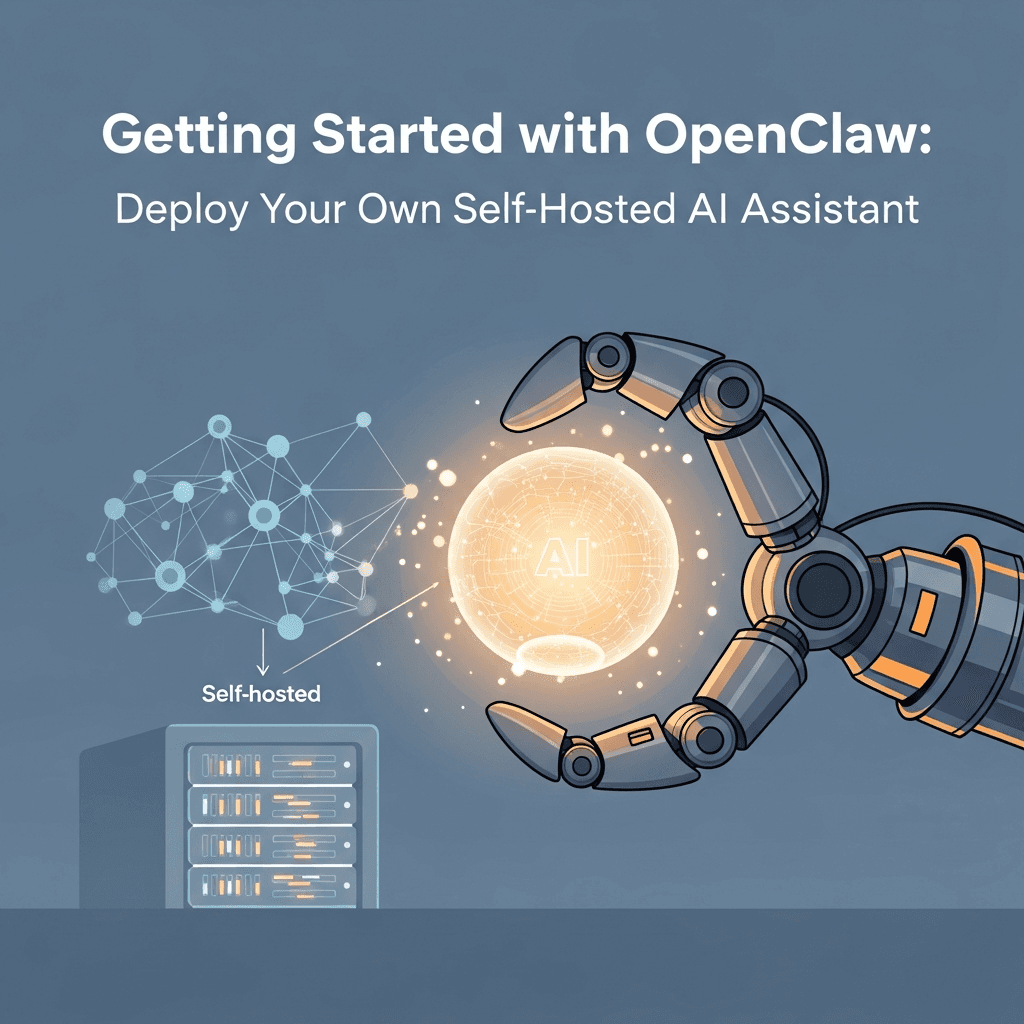
In an era dominated by cloud-based AI assistants, the allure of powerful conversational agents often comes with trade-offs: data privacy concerns, recurring subscription costs, and limited customization. What if you could harness the power of a sophisticated AI assistant while retaining complete control over your data, running it entirely on your own hardware? Enter OpenClaw, an innovative open-source project designed to bring the capabilities of large language models (LLMs) directly to your self-hosted environment.
OpenClaw aims to empower users with a private, secure, and highly customizable AI assistant. Whether you're a developer seeking a local coding companion, a student needing a research aid, or simply someone who values data privacy, self-hosting OpenClaw offers an unparalleled level of control and flexibility. This comprehensive guide will walk you through every step of deploying your own OpenClaw instance, from initial setup to advanced configuration and best practices.
What is OpenClaw?
OpenClaw is an open-source framework for building and deploying a self-hosted AI assistant. It acts as an orchestrator, integrating various components to provide a full-fledged AI experience on your local machine or private server. At its core, OpenClaw is designed around:
- Local LLM Integration: It supports various local LLM backends (e.g., Llama.cpp, Ollama, Hugging Face Transformers local models), allowing you to choose the model that best fits your hardware and needs.
- Modular Architecture: OpenClaw is built with a plugin-based system, enabling easy addition of new tools, agents, and functionalities.
- Intuitive User Interface: A web-based frontend provides a user-friendly chat interface, making interactions with your local AI seamless.
- Privacy-Centric Design: All data processing happens locally, ensuring your conversations and sensitive information never leave your control.
- Extensibility: Developers can extend OpenClaw with custom tools for web browsing, code execution, data analysis, and more.
By providing a robust platform for local AI, OpenClaw addresses common pain points associated with proprietary cloud services, putting you firmly in the driver's seat of your AI experience.
Why Self-Host Your AI Assistant?
The decision to self-host an AI assistant like OpenClaw is driven by several compelling advantages:
- Uncompromised Privacy and Data Security: This is perhaps the most significant benefit. When you self-host, your data remains on your servers. There's no third party processing your queries, ensuring sensitive information stays private and compliant with your personal or organizational privacy policies.
- Cost-Effectiveness: While initial hardware investment might be required, self-hosting eliminates recurring subscription fees associated with many cloud-based AI services. For intensive or frequent use, this can lead to substantial long-term savings.
- Complete Customization and Control: You have full control over the AI model, its configuration, and the tools it uses. Want to fine-tune a model for a specific task? Integrate a proprietary database? OpenClaw's open-source nature and modular design make this possible.
- Low Latency and Offline Capability: Running the AI locally means queries are processed almost instantly, without reliance on internet connectivity or external API calls. This is invaluable for critical applications or environments with unreliable internet access.
- No Vendor Lock-in: You're not tied to a specific provider's ecosystem. The open-source nature of OpenClaw means you can adapt, modify, and migrate your setup as your needs evolve.
- Learning and Experimentation: Self-hosting offers a fantastic learning opportunity to understand the underlying technologies of modern AI, LLMs, and containerization.
Prerequisites
Before diving into the deployment process, ensure your system meets the following requirements:
Hardware Requirements:
- CPU: A modern multi-core CPU (Intel i5/Ryzen 5 or better). For basic use, CPU inference is possible, but slower.
- RAM: At least 16GB RAM. For larger LLMs (7B+ parameters), 32GB or more is highly recommended.
- GPU (Recommended for Performance): An NVIDIA GPU with at least 8GB VRAM (e.g., RTX 3060 or better) is ideal for significantly faster inference. AMD GPUs with ROCm support can also be used, but setup might be more complex. Integrated GPUs (Intel Arc, AMD iGPUs) can sometimes be utilized but performance varies.
- Storage: At least 100GB of free SSD space for storing LLM models and OpenClaw components.
Software Requirements:
- Operating System: Linux (Ubuntu, Debian, Fedora recommended), Windows (with WSL2), or macOS.
- Docker and Docker Compose: Essential for containerized deployment. Install Docker Desktop for Windows/macOS or Docker Engine for Linux.
- Git: For cloning the OpenClaw repository.
- Python 3.9+ (Optional for Manual Setup): If you choose not to use Docker, or for development purposes.
Section 1: Initial Setup - Getting OpenClaw Ready
The first step is to get the OpenClaw source code onto your machine. We'll use Git for this.
-
Open your terminal or command prompt.
-
Clone the OpenClaw repository:
bashgit clone https://github.com/openclaw/openclaw.git cd openclawThis command downloads the entire OpenClaw project to a new directory named
openclawon your system and then navigates into that directory. -
Review the Project Structure:
Take a moment to familiarize yourself with the basic directory structure. You'll typically find:
backend/: Contains the core AI logic, LLM integrations, and API server.frontend/: The web-based user interface.config/: Configuration files for the entire system.tools/: Directory for various agents and tools (e.g., web search, code interpreter).docker-compose.yml: The main file for Docker Compose deployment.
Understanding this structure will be helpful for future customizations and troubleshooting.
Section 2: Docker-Compose Deployment (Recommended)
Docker Compose is the easiest and most recommended way to get OpenClaw up and running. It orchestrates all necessary services (backend, frontend, database, optional LLM server) into isolated containers.
-
Ensure Docker is Running: Make sure your Docker daemon is active. On Docker Desktop, you'll see the whale icon in your system tray. On Linux, you can check with
sudo systemctl status docker. -
Configure
docker-compose.yml: Open thedocker-compose.ymlfile in the root of theopenclawdirectory. You might need to make minor adjustments, especially if you plan to use an NVIDIA GPU or integrate a specific local LLM server like Ollama.Here's a simplified example of what your
docker-compose.ymlmight look like, assuming you want to use Ollama for your LLM:yamlversion: '3.8' services: backend: build: ./backend ports: - "8000:8000" environment: # Configuration for the backend to connect to Ollama - OPENCLAW_LLM_PROVIDER=ollama - OPENCLAW_LLM_OLLAMA_BASE_URL=http://ollama:11434 - OPENCLAW_LLM_OLLAMA_MODEL=llama2 # Add other backend configurations here volumes: - ./data/backend:/app/data # For persistent chat history, etc. depends_on: - ollama frontend: build: ./frontend ports: - "3000:3000" environment: - REACT_APP_BACKEND_URL=http://localhost:8000 # Connects to the backend volumes: - ./data/frontend:/app/data # For persistent frontend settings ollama: image: ollama/ollama:latest container_name: ollama ports: - "11434:11434" volumes: - ./data/ollama:/root/.ollama # For persistent models # Uncomment the following lines if you have an NVIDIA GPU # deploy: # resources: # reservations: # devices: # - driver: nvidia # count: all # capabilities: [gpu] volumes: data_backend: data_frontend: data_ollama:- GPU Support: If you have an NVIDIA GPU, uncomment the
deploysection under theollamaservice to allow the container to access your GPU. For non-NVIDIA GPUs, consult Ollama's documentation for specific setup. - Model Name: Change
OPENCLAW_LLM_OLLAMA_MODEL=llama2to your desired model (e.g.,mistral,phi3). You'll need to pull this model into Ollama later.
- GPU Support: If you have an NVIDIA GPU, uncomment the
-
Build and Run OpenClaw: Navigate to the
openclawdirectory in your terminal (wheredocker-compose.ymlis located) and execute:bashdocker compose up --build -d--build: This flag tells Docker Compose to build the images from the Dockerfiles (inbackend/andfrontend/) before starting the containers. This is crucial for the initial run.-d: Runs the containers in detached mode, meaning they will run in the background, freeing up your terminal.
-
Verify Services: After a few minutes (depending on your internet speed and system performance), you can check the status of your containers:
bashdocker compose psYou should see
Upnext to yourbackend,frontend, andollamaservices. -
Access the UI: Open your web browser and navigate to
http://localhost:3000. You should be greeted by the OpenClaw AI assistant interface.
Section 3: Manual Installation (Advanced)
For those who prefer a non-containerized setup, or for developers wanting to contribute, manual installation provides maximum control. This section focuses on setting up the backend; the frontend can be built and served separately or remain containerized.
-
Install Python Dependencies for Backend: Navigate to the
backenddirectory.bashcd backend pip install -r requirements.txt -
Configure Backend Environment Variables: Create a
.envfile in thebackenddirectory or set environment variables directly. This is where you'd specify your LLM provider and other settings.ini# backend/.env OPENCLAW_LLM_PROVIDER=ollama OPENCLAW_LLM_OLLAMA_BASE_URL=http://localhost:11434 # Assuming Ollama is running locally OPENCLAW_LLM_OLLAMA_MODEL=llama2 -
Run the Backend Server: Start the FastAPI backend application.
bashpython main.py # Or uvicorn main:app --host 0.0.0.0 --port 8000 -
Install Frontend Dependencies (if not using Docker): Navigate to the
frontenddirectory.bashcd ../frontend npm install -
Configure Frontend Environment Variables: Create a
.envfile in thefrontenddirectory.ini# frontend/.env REACT_APP_BACKEND_URL=http://localhost:8000 -
Run the Frontend Development Server:
bashnpm startThe frontend will typically open in your browser at
http://localhost:3000.
Section 4: Choosing and Integrating Local LLMs
OpenClaw's power comes from its ability to integrate with various local LLMs. The choice of LLM significantly impacts performance and capability.
Popular Local LLM Options:
- Ollama: The easiest way to get started. Ollama provides a simple API for downloading and running various open-source models (Llama 2, Mistral, Phi-3, etc.) locally.
- Llama.cpp: A highly optimized C/C++ inference engine for Llama models. Requires more manual setup but offers excellent performance, especially on CPU.
- Hugging Face Transformers (Local): Directly load models from Hugging Face for inference using PyTorch or TensorFlow, offering the widest range of models but potentially higher resource usage.
Integrating Ollama (Recommended for Beginners):
If you used the docker-compose.yml from Section 2, Ollama is already set up as a service. You just need to pull a model into it.
-
Pull a Model into Ollama: If Ollama is running as a Docker service, you can execute commands inside its container:
bashdocker exec -it ollama ollama pull llama2Replace
llama2with your desired model (e.g.,mistral,phi3:instruct). You can browse models at ollama.com/library. -
Configure OpenClaw Backend: Ensure your
docker-compose.ymlorbackend/.envspecifies the correct Ollama URL and model name.yaml# Excerpt from docker-compose.yml environment: - OPENCLAW_LLM_PROVIDER=ollama - OPENCLAW_LLM_OLLAMA_BASE_URL=http://ollama:11434 # 'ollama' is the service name - OPENCLAW_LLM_OLLAMA_MODEL=llama2 # Model pulled in previous stepAfter changing configuration, remember to restart your services:
docker compose restart backend.
Section 5: First Interaction and Basic Usage
With OpenClaw up and running and an LLM integrated, it's time to interact with your personal AI assistant.
-
Access the Web UI: Open your browser to
http://localhost:3000. -
Start a New Conversation: You'll typically see a chat interface. Type your first query into the input box.
- Example Query: "What are the main benefits of self-hosting an AI assistant?"
-
Observe the Response: The AI will process your request using the integrated LLM and provide a response. The speed of response will depend on your hardware and the size of the model.
-
Experiment with Different Prompts: Try various types of questions:
- "Explain quantum entanglement in simple terms."
- "Write a Python function to calculate the Fibonacci sequence."
- "Summarize the plot of 'Moby Dick'."
-
Understand Context: OpenClaw (and the underlying LLM) maintains conversational context within a single chat session. This means it remembers previous turns in the conversation, allowing for more natural and coherent interactions.
Section 6: Customizing OpenClaw - Agents and Tools
Beyond basic chat, OpenClaw's true power lies in its extensibility through agents and tools. Tools allow the AI to interact with the external world (e.g., perform web searches, execute code, access local files), while agents define how the AI utilizes these tools.
-
Explore Available Tools: OpenClaw typically comes with a set of pre-built tools in the
tools/directory (e.g.,web_search,calculator,code_interpreter). -
Enable/Disable Tools: Tools are usually enabled via configuration. Look for a
config.pyor similar file in thebackenddirectory, or within your environment variables, where you can list active tools.python# Example: backend/config.py or similar configuration ENABLED_TOOLS = [ "web_search", "calculator", # "code_interpreter" # Uncomment to enable ]After modifying the configuration, remember to restart the backend service.
-
How Tools are Used: When you ask a question that requires external information (e.g., "What's the weather in London right now?"), the AI's agent will determine if an enabled tool (like
web_search) can help answer the query, execute it, and then integrate the results into its response. -
Creating Custom Tools (Conceptual): For advanced users, creating custom tools involves:
- Defining a Python function that performs a specific action (e.g., interacting with a local database, controlling smart home devices).
- Creating a wrapper for this function that exposes it to the OpenClaw backend with a clear description of its capabilities and expected inputs.
- Adding the tool to the
ENABLED_TOOLSlist.
This allows you to tailor your AI assistant to your unique local environment and needs.
Section 7: Data Management and Persistence
Understanding how OpenClaw manages data is crucial for ensuring persistence, backups, and privacy.
-
Persistent Storage: When using Docker Compose, the
volumessection indocker-compose.ymlis critical. It maps directories inside your containers to directories on your host machine. This ensures that data (like chat history, LLM models, and configurations) persists even if containers are recreated.yaml# Excerpt from docker-compose.yml volumes: - ./data/backend:/app/data # Backend data - ./data/frontend:/app/data # Frontend data - ./data/ollama:/root/.ollama # Ollama models and dataIn this setup,
data/backend,data/frontend, anddata/ollamadirectories will be created in youropenclawproject root on the host. -
Backup Strategies: Regularly back up the entire
openclawdirectory, especially thedata/subdirectories. For critical data, consider automated backup solutions to cloud storage or a separate local drive. -
Database: OpenClaw often uses a lightweight local database (e.g., SQLite) for managing chat history, user settings, and tool configurations. This database file will reside within the
backend's persistent volume. -
Model Storage: LLM models downloaded by Ollama or other local inference engines are large. They are stored in their respective persistent volumes (e.g.,
data/ollama). Ensure you have enough disk space for all the models you intend to use.
Section 8: Security Best Practices for Self-Hosting
While self-hosting enhances privacy, it also shifts security responsibility to you. Implementing robust security measures is paramount.
-
Network Isolation: By default, OpenClaw runs on
localhost. If you expose it to your local network or the internet, be cautious:- Firewall: Configure your host machine's firewall to restrict access to OpenClaw's ports (e.g., 3000, 8000, 11434) only to trusted IPs or your local network.
- Reverse Proxy with Authentication: If you need external access, use a reverse proxy (like Nginx or Caddy) with strong authentication (e.g., username/password, OAuth) and SSL/TLS encryption. Never expose OpenClaw directly to the internet without these protections.
-
Regular Updates: Keep OpenClaw, Docker, your operating system, and all dependencies updated. This ensures you benefit from the latest security patches and bug fixes.
- For OpenClaw:
git pull origin mainin theopenclawdirectory, thendocker compose up --build -d. - For Docker: Follow your OS-specific update procedures.
- For OpenClaw:
-
Resource Management: Monitor your system's resource usage. An overloaded system can become unstable and potentially vulnerable.
-
Principle of Least Privilege: If you create custom tools, ensure they only have access to the resources they absolutely need.
Section 9: Real-World Use Cases
Self-hosted OpenClaw is incredibly versatile. Here are a few real-world scenarios where it shines:
- Personal Knowledge Base and Research Assistant: Feed OpenClaw with your personal documents, research papers, or notes. Use it to summarize content, answer questions based on your data, or generate new insights without uploading sensitive information to third parties.
- Confidential Coding Assistant: For developers working with proprietary code, OpenClaw can act as a secure coding assistant. Ask for code explanations, refactoring suggestions, or boilerplate code generation, keeping all your intellectual property local.
- Local Data Analysis and Reporting: Integrate OpenClaw with local data sources (e.g., CSV files, private databases). Ask it to analyze trends, generate reports, or even write SQL queries for you, all within your secure environment.
- Smart Home Integration (Advanced): With custom tools, OpenClaw could potentially integrate with your local smart home hub to control devices via natural language commands, enhancing privacy over cloud-dependent solutions.
- Offline Productivity Tool: For travelers, remote workers, or those in areas with intermittent internet, OpenClaw provides a fully functional AI assistant even without an active connection.
Section 10: Troubleshooting Common Issues
Even with clear instructions, you might encounter issues. Here are some common problems and their solutions:
-
"Container Failed to Start" or "Error response from daemon":
- Check Docker Status: Ensure Docker is running (
sudo systemctl status dockeron Linux, or check Docker Desktop icon). - Port Conflicts: Another application might be using ports 3000, 8000, or 11434. Change the port mappings in
docker-compose.yml(e.g.,8001:8000). - Resource Limits: Your system might not have enough RAM or CPU. Check
docker logs <container_name>(e.g.,docker logs openclaw-backend-1) for specific errors.
- Check Docker Status: Ensure Docker is running (
-
"Model Not Found" or "Failed to load model" (Ollama):
- Model Not Pulled: Ensure you've pulled the model into Ollama (e.g.,
docker exec -it ollama ollama pull llama2). - Incorrect Model Name: Double-check the
OPENCLAW_LLM_OLLAMA_MODELenvironment variable in your backend configuration to match the exact model name pulled. - Ollama Service Down: Verify the Ollama container is running and accessible from the backend service. Check
docker logs ollama.
- Model Not Pulled: Ensure you've pulled the model into Ollama (e.g.,
-
"Backend Not Responding" or UI Errors:
- Backend Not Running: Check
docker compose psto ensure thebackendservice isUp. - Incorrect Backend URL: Verify
REACT_APP_BACKEND_URLin the frontend configuration points to the correct backend address and port (e.g.,http://localhost:8000). - Logs: Check the backend logs for errors:
docker logs openclaw-backend-1.
- Backend Not Running: Check
-
Slow Performance:
- Hardware Limitations: If you're running a large model on CPU-only or insufficient RAM, performance will be slow. Consider upgrading hardware or using a smaller, more efficient LLM.
- GPU Not Utilized: If you have a GPU, ensure it's correctly configured for the LLM inference engine (e.g., uncomment NVIDIA GPU lines in
docker-compose.ymlfor Ollama).
Best Practices
- Start Small: Begin with smaller, more efficient LLMs (e.g., Phi-3, tinyLlama) to ensure your setup works before moving to larger models.
- Version Control Your Configurations: Keep your
docker-compose.ymland any custom configuration files under version control (e.g., Git) to track changes and easily revert if needed. - Monitor Resources: Use tools like
htop,nvidia-smi, or Docker Desktop's resource monitor to keep an eye on CPU, RAM, and GPU utilization. - Regular Backups: Automate backups of your
data/directory to prevent data loss. - Engage with the Community: If OpenClaw has a community forum, Discord, or GitHub discussions, participate to get help, share insights, and contribute.
Common Pitfalls
- Under-provisioning Hardware: Expecting a large LLM to run smoothly on minimal RAM or without a dedicated GPU will lead to frustration.
- Ignoring Security: Exposing your self-hosted AI to the internet without proper authentication and encryption is a major risk.
- Not Persisting Data: Forgetting to configure Docker volumes means losing chat history and other data every time containers are removed.
- Outdated Components: Neglecting to update OpenClaw or its dependencies can lead to bugs, performance issues, or security vulnerabilities.
- Over-customization Too Soon: Before you understand the core functionality, avoid deep customization of agents and tools, as it can complicate troubleshooting.
Conclusion
Deploying your own self-hosted AI assistant with OpenClaw is a powerful step towards regaining control over your digital interactions. By following this guide, you've not only set up a sophisticated local AI but also gained valuable insights into the architecture, configuration, and best practices of running open-source LLMs. You now have a private, customizable, and efficient AI companion that respects your data and operates entirely on your terms.
The journey with OpenClaw doesn't end here. Explore its modular design, experiment with different LLMs, develop custom tools tailored to your specific needs, and contribute to the vibrant open-source community. The future of personal AI is local, private, and in your hands.
Written by
CodewithYohaFull-Stack Software Engineer with 7+ years of experience in Java, Spring Boot, and cloud architecture across AWS, Azure, and GCP. Writing production-grade engineering patterns for developers who ship real software.