Elevate DX: Crafting Superior CLI Tools and Documentation

Introduction
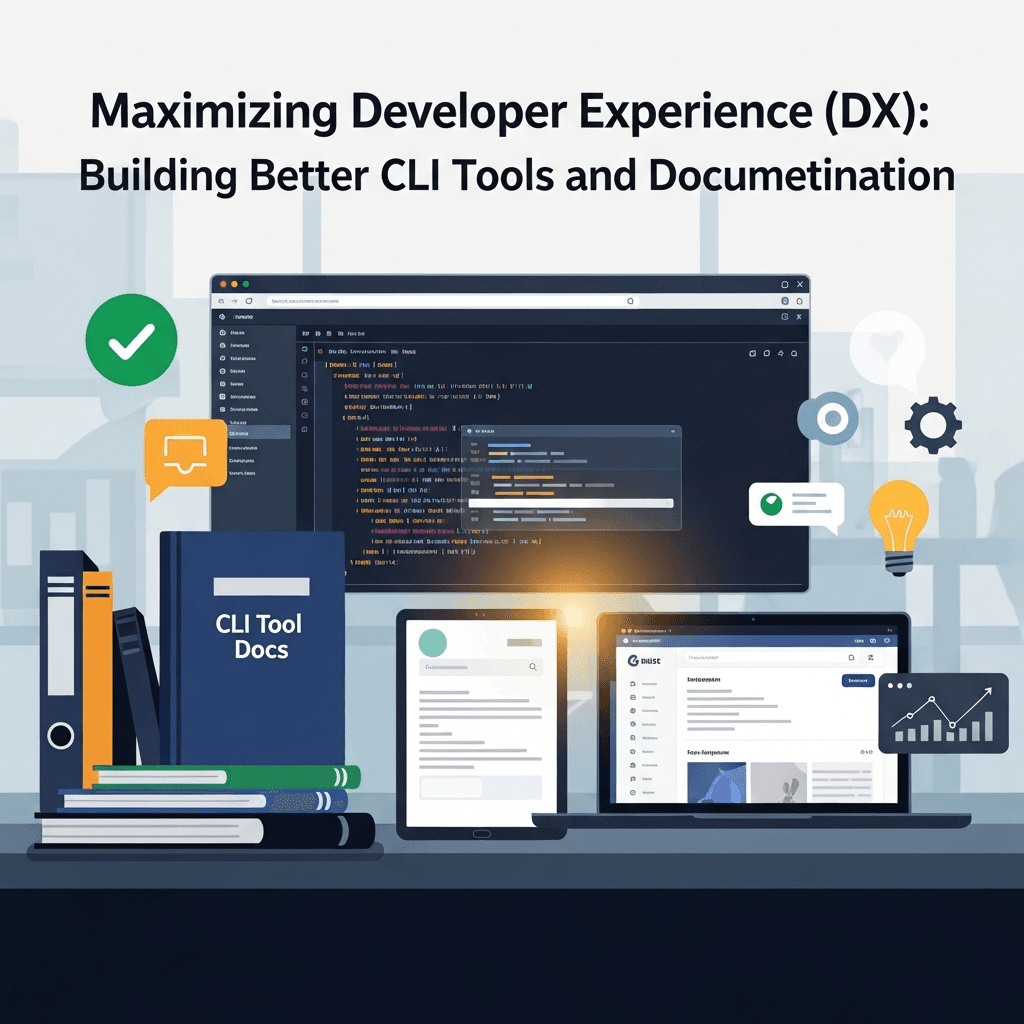
In the fast-paced world of software development, the efficiency and satisfaction of developers are paramount. This concept, often encapsulated as Developer Experience (DX), is increasingly recognized as a critical factor in the success of any project, product, or platform. At its core, DX is about making developers' lives easier, more productive, and more enjoyable. Two of the most significant touchpoints for DX are Command Line Interface (CLI) tools and documentation.
CLI tools are the workhorses of development workflows, enabling automation, configuration, and interaction with systems. Well-designed CLIs can transform complex tasks into simple, repeatable commands. Complementing this, comprehensive and accessible documentation acts as the ultimate guide, demystifying intricacies, onboarding new users, and solving problems before they arise. Together, superior CLI tools and stellar documentation forge an unbeatable combination that drastically enhances developer productivity and fosters adoption.
This guide will delve deep into the principles and practices of building exceptional CLI tools and crafting documentation that truly empowers developers. We'll explore design philosophies, practical implementation techniques, and strategies for maintaining a high standard of DX across your entire ecosystem.
Prerequisites
To get the most out of this guide, a basic understanding of:
- Programming concepts in any modern language (e.g., Python, JavaScript, Go).
- Familiarity with the command line and common shell operations.
- Fundamental software development principles.
1. Understanding Developer Experience (DX)
Developer Experience (DX) is the sum total of all interactions a developer has with a product, API, tool, or platform. It encompasses everything from the ease of installation and initial setup to the clarity of error messages, the intuitiveness of an SDK, and the comprehensiveness of documentation. A positive DX reduces friction, accelerates learning curves, and minimizes the cognitive load on developers, allowing them to focus on solving core business problems rather than wrestling with tools.
Why DX Matters:
- Increased Adoption: Tools with great DX are more likely to be adopted and become integral to workflows.
- Higher Productivity: Developers spend less time debugging or searching for answers, leading to faster development cycles.
- Reduced Support Burden: Clear tools and docs proactively answer questions, decreasing the need for direct support.
- Improved Morale: Developers enjoy using well-crafted tools, fostering a positive work environment.
- Stronger Community: A good DX encourages community contributions and advocacy.
2. The Pillars of Great CLI Tools
Effective CLI tools are built upon several foundational principles:
- Consistency: Commands, flags, and arguments should follow predictable patterns. If
createuses--name,deleteshouldn't use--idfor a similar concept without good reason. - Predictability: Users should be able to anticipate the outcome of a command based on its name and arguments.
- Discoverability: Users should easily find what they need, whether through
--help, tab completion, or clear documentation. - Efficiency: Commands should execute quickly and allow for automation without manual intervention.
- Robustness: Tools should handle errors gracefully, providing actionable feedback.
- User Empathy: Design with the user's workflow and potential frustrations in mind.
3. Designing Intuitive CLI Commands
The design of your CLI's command structure is critical. It should be logical, easy to remember, and scalable. Consider using a hierarchical structure with subcommands.
Naming Conventions
- Verbs for actions, nouns for resources:
mycli create user --name John,mycli delete project --id 123. - Kebab-case for commands and flags:
mycli list-items,--output-format. - Short, memorable names: Balance brevity with clarity.
Subcommands and Flags
Organize related functionalities under subcommands. Flags modify the behavior of a command.
# Example using Python's Click library for structured commands
import click

@click.group()
def cli():
    """A simple CLI tool for managing tasks."""
    pass

@cli.command()
@click.option('--name', required=True, help='Name of the task.')
@click.option('--priority', default='medium', type=click.Choice(['low', 'medium', 'high']), help='Priority of the task.')
def create(name, priority):
    """Creates a new task."""
    click.echo(f"Creating task: {name} with priority: {priority}")

@cli.command()
@click.argument('task_id', type=int)
def complete(task_id):
    """Marks a task as complete."""
    click.echo(f"Completing task {task_id}")

if __name__ == '__main__':
    cli()
This structure allows for mycli create --name "Buy groceries" --priority high and mycli complete 5, making it clear what actions are available and how to modify them.
4. Providing Clear and Actionable Feedback
Feedback is crucial for user confidence and problem-solving. A CLI should always tell the user what's happening, whether an operation succeeded, failed, or is in progress.
Success Messages
Confirm successful operations concisely.
# Good:
$ mycli deploy my-app
Deployment of 'my-app' successful. Access at: https://my-app.example.com

# Bad:
$ mycli deploy my-app
# No output, user wonders if it worked
Error Messages
Errors should be specific, explain the cause, and suggest a solution.
// Example of an error message in a Node.js CLI
const chalk = require('chalk'); // For colored output

function handleApiError(error) {
    if (error.response && error.response.status === 401) {
        console.error(chalk.red("Error: Authentication failed."));
        console.error("Reason: Invalid or expired API key.");
        console.error("Action: Please log in again using 'mycli login' or check your API key.");
    } else if (error.code === 'ENOTFOUND') {
        console.error(chalk.red("Error: Network issue."));
        console.error("Reason: Could not connect to the API server.");
        console.error("Action: Check your internet connection and verify the API endpoint.");
    } else {
        console.error(chalk.red("An unexpected error occurred."));
        console.error("Details: " + error.message);
        console.error("Action: Please try again or contact support if the issue persists.");
    }
    process.exit(1); // Exit with a non-zero code to indicate failure
}

// Usage example:
try {
    // ... API call ...
} catch (e) {
    handleApiError(e);
}
Progress Indicators
For long-running operations, spinners or progress bars reassure the user that the tool is working and hasn't frozen.
# Example using Python's 'tqdm' for a progress bar
import time
from tqdm import tqdm

def long_running_task():
    print("\nStarting complex operation...")
    for i in tqdm(range(100), desc="Processing data"):
        time.sleep(0.05) # Simulate work
    print("Operation complete!")

if __name__ == '__main__':
    long_running_task()
5. Interactive CLIs: Enhancing User Input
While CLIs are often designed for automation, interactive prompts can greatly improve DX for initial setup, complex choices, or sensitive input.
Prompts for Input
Use libraries like inquirer.js (Node.js) or prompt_toolkit (Python) to ask questions.
// Example using Node.js 'Inquirer.js'
const inquirer = require('inquirer');

async function configureProject() {
  const answers = await inquirer.prompt([
    {
      type: 'input',
      name: 'projectName',
      message: 'Enter project name:',
      validate: input => input.length > 0 ? true : 'Project name cannot be empty.'
    },
    {
      type: 'list',
      name: 'language',
      message: 'Choose a language:',
      choices: ['JavaScript', 'Python', 'Go', 'TypeScript']
    },
    {
      type: 'confirm',
      name: 'installDependencies',
      message: 'Install dependencies now?',
      default: true
    }
  ]);

  console.log(`\nConfiguring project '${answers.projectName}' with ${answers.language}.`)
  if (answers.installDependencies) {
    console.log('Installing dependencies...');
  } else {
    console.log('Dependencies will not be installed automatically.');
  }
}

configureProject();
Auto-completion
Shell auto-completion (for Bash, Zsh, etc.) is a powerful DX feature, allowing users to discover commands and flags by pressing Tab.
6. Building Robustness: Error Handling and Resilience
A robust CLI handles unexpected situations gracefully. This includes validating input, managing network failures, and providing clear recovery paths.
- Input Validation: Don't trust user input. Validate data types, formats, and required fields early.
- Retry Mechanisms: For transient network errors, implement exponential backoff retries for API calls.
- Idempotency: Design commands so that running them multiple times has the same effect as running them once (e.g.,
create-usershould ideally check if the user already exists). - Graceful Exit: Use appropriate exit codes (
0for success, non-zero for failure) for scriptability.
7. Automating with CLI Tools
One of the primary benefits of CLIs is their scriptability. They should be designed to be easily integrated into larger automation scripts, CI/CD pipelines, and custom workflows.
- Non-interactive Mode: Provide flags (e.g.,
--yes,--force) to bypass interactive prompts for automated environments. - Machine-readable Output: Offer options like
--jsonor--yamlto produce structured output, making it easier for other programs to parse. - Clear Exit Codes: As mentioned, consistent exit codes are vital for conditional logic in scripts.
# Example of a script using a CLI tool
#!/bin/bash

PROJECT_NAME="my-ci-project"

# Create project non-interactively, outputting JSON
PROJECT_INFO=$(mycli create project --name "$PROJECT_NAME" --json --yes)

if [ $? -ne 0 ]; then
    echo "Error creating project. Exiting." >&2
    exit 1
fi

# Extract project ID using `jq` (a JSON processor for the command line)
PROJECT_ID=$(echo "$PROJECT_INFO" | jq -r '.id')

echo "Project $PROJECT_NAME created with ID: $PROJECT_ID"

# Deploy application to the new project
mycli deploy app --project-id "$PROJECT_ID" --source ./src

if [ $? -ne 0 ]; then
    echo "Error deploying application. Exiting." >&2
    exit 1
fi

echo "Application deployed successfully."
8. The Art of Comprehensive Documentation
Documentation is not an afterthought; it's an integral part of the product. Great documentation reduces friction, fosters self-sufficiency, and scales knowledge.
Why Documentation is Crucial:
- Onboarding: Helps new users quickly understand and use your tools.
- Reference: Serves as an authoritative source for commands, flags, and configurations.
- Troubleshooting: Guides users through common problems and solutions.
- Best Practices: Educates users on optimal ways to leverage the tool.
- Community Building: Encourages contributions and broadens understanding.
Types of Documentation
- Tutorials: Step-by-step guides for achieving specific goals (e.g., "Get started with
mycli"). - How-to Guides: Recipes for solving particular problems (e.g., "Deploying a specific application type").
- Reference Documentation: Exhaustive, detailed descriptions of every command, flag, API endpoint, or configuration option. This is where
--helpoutput expands. - Conceptual Guides: Explain the underlying principles, architecture, and design decisions.
- Troubleshooting/FAQ: A collection of common issues and their resolutions.
9. Structuring Your Documentation for Discoverability
Good documentation is not just about having information; it's about making that information easy to find and consume.
- Logical Hierarchy: Organize content from general concepts to specific details.
- Searchability: Implement a robust search function on your documentation site.
- Clear Navigation: Use a consistent sidebar, breadcrumbs, and internal links.
- Version Control: Clearly indicate which version of the tool the documentation applies to.
- Readability: Use clear language, short paragraphs, bullet points, and code blocks. Avoid jargon where possible, or explain it.
# Project CLI Documentation

This documentation provides guides and references for using the `project-cli` tool.

## Getting Started

### Installation

To install `project-cli`, ensure you have Node.js (v16+) installed, then run:

```bash
npm install -g project-cli
First Project
-
Create a new project:
bashproject-cli create my-first-appThis will prompt you for a project template and set up a new directory.
-
Navigate to your project:
bashcd my-first-app -
Deploy your application:
bashproject-cli deployFollow the prompts to configure your deployment target.
Commands Reference
project-cli create [name]
Creates a new project with the specified name.
Arguments:
name(string, required): The name of the new project.
Options:
--template <type>(string): Specify a project template (e.g.,react,vue). Defaults tobasic.--skip-install(boolean): Do not install dependencies after creation.
Examples:
project-cli create my-react-app --template react
project-cli create my-api --skip-install
project-cli deploy
Deploys the current project to a configured environment.
Options:
--env <environment>(string): The target environment (e.g.,staging,production). Defaults todevelopment.--force(boolean): Force deployment, bypassing confirmations.
Examples:
project-cli deploy --env production
project-cli deploy --force
Troubleshooting
"Error: API Key invalid"
Cause: Your API key might be expired or incorrect.
Solution: Run project-cli login to refresh your authentication token.
Concepts
Project Templates
Project templates are predefined structures...
## 10. Integrating Documentation with CLI Tools

The best documentation is always available where the user needs it. Integrating documentation directly into your CLI enhances discoverability and context.

*   **`--help` Output:** Every command and subcommand should have a concise, useful `--help` message. This is often the first place users look.
*   **Man Pages:** For Unix-like systems, providing `man` pages offers a standardized, offline reference.
*   **Links to Online Docs:** When an error occurs or a complex feature is mentioned, provide a direct URL to the relevant section of your online documentation.
*   **Examples in `--help`:** Include practical examples in the help text to show users how to use commands.

```bash
# Example of good --help output
$ mycli deploy --help

Usage: mycli deploy [options]

Deploys the current project to a configured environment.

Options:
  -e, --env <environment>  The target environment (e.g., staging, production). Defaults to 'development'.
  -f, --force              Force deployment, bypassing confirmations.
  -h, --help               Display help for command.

Examples:
  $ mycli deploy --env production
  $ mycli deploy -f

For more detailed information, visit: https://docs.example.com/cli/deploy
11. Maintaining and Evolving Your DX
DX is not a one-time effort; it's an ongoing commitment. Continuously improve your CLI tools and documentation based on user feedback and evolving needs.
- Feedback Loops: Actively solicit feedback from users through surveys, GitHub issues, or community forums. Monitor usage patterns if privacy allows.
- Analytics: Track command usage (anonymously) to understand which features are most used and which might be confusing.
- Version Control for Docs: Treat documentation like code. Store it in version control, review changes, and link it to specific product versions.
- Regular Updates: Keep documentation current with every new feature, change, or deprecation in your CLI tool.
- Usability Testing: Observe real developers using your CLI and documentation to identify pain points.
Best Practices
- Principle of Least Astonishment: Design your CLI to behave in ways users would expect.
- Sensible Defaults: Provide reasonable default values for options to reduce the required input.
- Progressive Disclosure: Don't overwhelm users with too many options at once. Start simple and allow for advanced configurations.
- Internationalization: Consider supporting multiple languages for both CLI output and documentation if your user base is global.
- Test Your CLI: Write automated tests for your CLI commands to ensure they work as expected.
- Single Source of Truth: Aim for your CLI's
--helpoutput to be generated from the same source as your reference documentation to prevent discrepancies.
Common Pitfalls
- Inconsistent UX: Varying flag names, argument order, or output formats across commands.
- Poor Error Messages: Generic error messages that offer no insight or solution.
- Outdated Documentation: Docs that don't reflect the current state of the tool.
- Lack of Examples: Documentation without practical examples is often hard to follow.
- Over-engineering the CLI: Adding too many niche features that complicate the core functionality.
- Ignoring User Feedback: Failing to address reported issues or suggestions.
- No Clear Exit Strategy: Not providing a way to quit a long-running or interactive process.
Conclusion
Maximizing Developer Experience through well-crafted CLI tools and comprehensive documentation is not just a nice-to-have; it's a strategic imperative. By investing in these areas, you empower developers, accelerate adoption, and build a more robust and enjoyable ecosystem. Remember that DX is an ongoing journey of empathy, design, and continuous improvement.
Start by focusing on clarity, consistency, and user feedback. Iterate on your designs, keep your documentation current, and always put the developer at the center of your efforts. The rewards – in terms of productivity, satisfaction, and community engagement – will be well worth the investment. Embrace the challenge, and transform your developer tools into true enablers of innovation.
Written by
CodewithYohaFull-Stack Software Engineer with 7+ years of experience in Java, Spring Boot, and cloud architecture across AWS, Azure, and GCP. Writing production-grade engineering patterns for developers who ship real software.