
Mastering Spatial Computing: A Developer's Guide to VisionOS and XR

Introduction
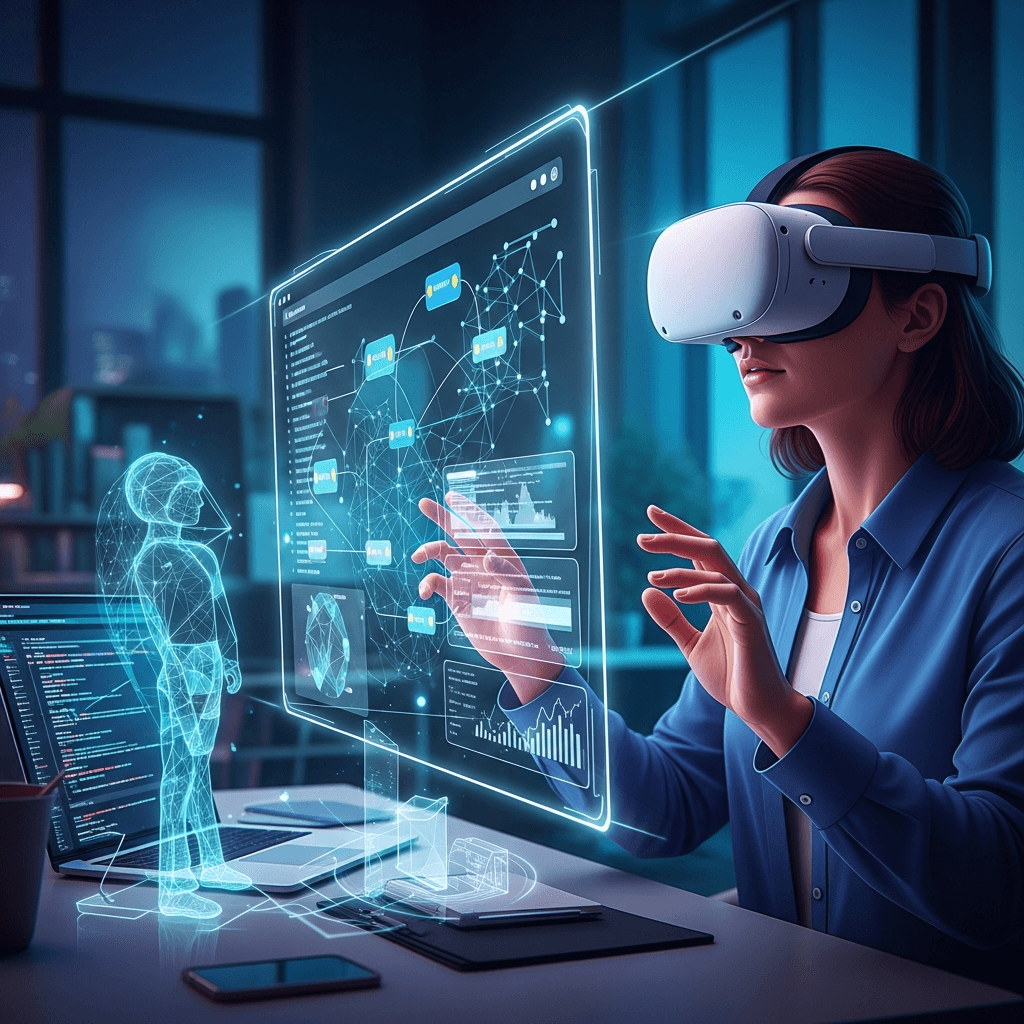
Spatial computing represents a paradigm shift in how humans interact with digital information, blending virtual content seamlessly into the physical world or transporting users entirely into digital environments. Unlike traditional 2D interfaces confined to screens, spatial computing allows applications to understand and leverage the three-dimensional space around the user, opening up unprecedented possibilities for immersive and intuitive experiences.
Apple's entry into this domain with VisionOS and Apple Vision Pro marks a pivotal moment, bringing spatial computing to a broad consumer audience with a sophisticated, integrated platform. For developers, this presents a unique opportunity to innovate and create applications that go beyond the flat screen, offering new ways to work, play, learn, and connect.
This comprehensive guide will demystify spatial computing, delve into the VisionOS development ecosystem, provide practical code examples, and outline best practices for building compelling spatial experiences that truly resonate with users.
Prerequisites
To embark on your VisionOS development journey, you'll need the following:
- macOS Sonoma 14.0 or later: Required for Xcode 15 and above.
- Xcode 15.0 or later: The primary IDE for VisionOS development, including the VisionOS SDK and simulator.
- Apple Vision Pro (optional but recommended): For testing on actual hardware. The simulator is excellent for initial development.
- Basic understanding of Swift and SwiftUI: VisionOS development heavily relies on these frameworks.
- Familiarity with 3D concepts: While not strictly required, a grasp of concepts like meshes, materials, and coordinate systems will be beneficial.
What is Spatial Computing?
Spatial computing is an umbrella term encompassing technologies that enable digital content to interact with and understand the real world in three dimensions. It's more than just Augmented Reality (AR) or Virtual Reality (VR); it's about applications that are aware of their environment, capable of spatial reasoning, and designed for human interaction within that space.
Key characteristics of spatial computing include:
- Environment Understanding: The system perceives and maps the physical world (surfaces, objects, boundaries).
- Spatial Anchoring: Digital objects can be "anchored" to real-world locations, maintaining their position and scale.
- Natural Interaction: Users interact with digital content using natural gestures, gaze, and voice, rather than traditional input devices.
- Presence: The feeling of being physically present in a virtual or mixed environment.
- Immersion: The degree to which a user feels engrossed in the experience.
VisionOS takes these concepts further by integrating a sophisticated array of sensors and powerful chips (M2 and R1) to provide unparalleled environment understanding, low-latency pass-through video, and high-fidelity rendering, blurring the lines between the digital and physical.
VisionOS Architecture Overview
VisionOS is built on the foundation of existing Apple frameworks like SwiftUI, RealityKit, and ARKit, but extends them with specific capabilities for spatial computing. It offers a spectrum of immersive experiences, categorized into three main types:
- Windowed Apps: These are familiar 2D apps, rendered as floating windows in the user's space. They can be resized, repositioned, and stacked, offering a multi-app multitasking experience in 3D space.
- Volumetric Experiences: These apps render 3D content directly into the shared space, alongside existing 2D windows. They can be interactive and react to the environment but don't fully immerse the user.
- Fully Immersive Spaces: These experiences take over the user's entire field of view, transporting them into a completely digital environment or a highly augmented one. Users can choose to dial in their level of immersion, blending real-world surroundings with virtual scenes.
At its core, VisionOS leverages SwiftUI for UI layout, RealityKit for 3D rendering and physics, and ARKit for world tracking and scene understanding. These frameworks work in concert to create robust spatial applications.
Developing with SwiftUI for VisionOS
SwiftUI is the primary framework for building user interfaces on VisionOS, just as it is for iOS, macOS, watchOS, and tvOS. However, it introduces new concepts and views tailored for spatial interactions.
WindowGroup and Volumetric Views
Every VisionOS app starts with a WindowGroup, which defines the initial 2D window. You can declare multiple WindowGroups or use ImmersiveSpace for full immersion.
To display 3D content in a window or as a volumetric scene, you use RealityView within your SwiftUI hierarchy.
Let's create a basic VisionOS app that displays a 3D cube in a resizable window:
import SwiftUI
import RealityKit
import RealityKitContent

@main
struct MySpatialApp: App {
    var body: some Scene {
        WindowGroup {
            ContentView()
        }
    }
}

struct ContentView: View {
    var body: some View {
        RealityView {
            content in
            // Load a 3D model from the RealityKit Content Library
            if let scene = try? await Entity(named: "Scene", in: realityKitContentBundle) {
                content.add(scene)
            }
        }
        .gesture(TapGesture().onEnded { _ in
            // Handle tap gesture on the 3D content
            print("3D content tapped!")
        })
        .navigationTitle("Spatial Cube") // Optional: Title for the window
    }
}
In this example, RealityView is the bridge between SwiftUI and RealityKit. It provides a closure where you can add Entity objects, which represent 3D content like models, lights, and cameras. The Entity(named: "Scene", in: realityKitContentBundle) line attempts to load a pre-made scene (which could contain a cube or any other model) from the automatically generated realityKitContentBundle that Xcode creates for your Reality Composer Pro assets.
Introducing RealityKit
RealityKit is Apple's framework for building high-performance 3D experiences. It handles rendering, animation, physics, spatial audio, and even network synchronization for shared experiences. While SwiftUI defines what to show, RealityKit defines how 3D content behaves and looks.
Key features of RealityKit:
- Entity-Component System (ECS): A flexible architecture for organizing 3D objects and their properties.
- Physics Engine: Realistic collision detection and physics simulations.
- Spatial Audio: Immersive sound that reacts to the 3D environment.
- Animations: Built-in support for keyframe animations and procedural animations.
- Asset Management: Integrates seamlessly with
.usdzand Reality Composer Pro scenes.
Let's expand on loading a model and making it interactive:
import SwiftUI
import RealityKit
import RealityKitContent

struct ModelLoadingView: View {
    @State private var modelRotation: Angle = .zero

    var body: some View {
        RealityView {
            content in
            // Load a specific model, e.g., a 'ToyTrain' from your assets
            if let modelEntity = try? await Entity(named: "ToyTrain", in: realityKitContentBundle) {
                // Add a transform component for rotation
                modelEntity.components.set(Transform(pitch: 0, yaw: Float(modelRotation.radians), roll: 0))
                content.add(modelEntity)
            }
        } update: {
            content in
            // This block is called when @State variables change, allowing dynamic updates
            if let modelEntity = content.entities.first {
                var transform = modelEntity.transform
                transform.rotation = simd_quatf(angle: Float(modelRotation.radians), axis: [0, 1, 0])
                modelEntity.transform = transform
            }
        }
        .gesture(DragGesture().onChanged { value in
            modelRotation = Angle(radians: Double(value.translation.width) * 0.01)
        })
        .frame(width: 500, height: 300) // Define a size for the volumetric window
    }
}
This example demonstrates loading a ToyTrain model and allowing the user to rotate it by dragging within the RealityView. The update closure in RealityView is crucial for reacting to SwiftUI state changes and updating RealityKit entities dynamically.
Spatial Anchors and World Understanding
One of the most powerful aspects of spatial computing is the system's ability to understand and map the real world. VisionOS, through ARKit and its advanced sensor fusion, can detect planes, understand object boundaries, and track its own position and orientation within the environment. This allows digital content to be spatially anchored, meaning it stays fixed relative to the real world.
AnchorEntity is RealityKit's way of pinning content to specific locations in the real world. Common anchor types include:
.world(transform:): An anchor at a fixed position and orientation in the world coordinate system..plane(classification:minimumBounds:filter:): Anchors to detected horizontal or vertical planes..image(group:name:): Anchors to detected 2D images..object(group:name:): Anchors to detected 3D objects.
Here's how you might place an object on a detected horizontal plane:
import SwiftUI
import RealityKit
import ARKit

struct PlanePlacementView: View {
    var body: some View {
        RealityView {
            content in
            // Create an anchor for a horizontal plane
            let anchor = AnchorEntity(.plane(.horizontal, classification: .any, minimumBounds: SIMD2<Float>(0.2, 0.2)))

            // Load a model to place on the plane
            if let sphere = try? await ModelEntity(mesh: .generateSphere(radius: 0.1), material: SimpleMaterial(color: .blue, isTransparent: false)) {
                sphere.position = [0, 0.05, 0] // Lift it slightly above the plane
                anchor.addChild(sphere)
            }
            content.add(anchor)
        }
        .onAppear { // Request ARKit session for plane detection
            ARKitSession.requestAuthorization(for: [.worldSensing]) { result in
                // Handle authorization result
            }
            // Start an ARKitSession to enable world understanding
            let session = ARKitSession()
            session.run([PlaneDetectionProvider(alignments: [.horizontal])])
        }
    }
}Note: Full ARKit session management can be more complex, involving ARKitSessionDelegate and managing providers. This example provides a simplified view for conceptual understanding.
User Interaction in Spatial Environments
Interaction in spatial computing moves beyond clicks and taps to embrace natural human input. VisionOS leverages a combination of:
- Gaze: Where the user is looking.
- Hand Gestures: Pinch, tap, drag, direct manipulation.
- Voice: Siri integration and custom voice commands.
RealityKit entities can be made interactive using the InputTargetComponent and CollisionComponent. SwiftUI gestures can then be attached to RealityView or specific ModelEntity objects (if using SpatialTapGesture or SpatialDragGesture).
Let's make our sphere draggable:
import SwiftUI
import RealityKit

struct DraggableSphereView: View {
    var body: some View {
        RealityView {
            content in
            let sphere = ModelEntity(mesh: .generateSphere(radius: 0.1),
                                     material: SimpleMaterial(color: .red, isTransparent: false))
            sphere.components.set(InputTargetComponent())
            sphere.components.set(CollisionComponent(shapes: [.generateSphere(radius: 0.1)]))
            sphere.position = [0, 1.0, -1.0] // Initial position in front of the user
            content.add(sphere)
        }
        .gesture(SpatialTapGesture().onEnded { event in
            if let entity = event.entity {
                print("Tapped on: \(entity.name)")
            }
        })
        .gesture(SpatialDragGesture().onChanged { event in
            if let entity = event.entity {
                // Move the entity based on the drag translation
                entity.position = event.location3D
            }
        })
    }
}
SpatialTapGesture and SpatialDragGesture provide Event.entity to identify which 3D object was interacted with and Event.location3D for the new world position during a drag.
Immersive Spaces: The Full XR Experience
For experiences that require full immersion or a highly controlled environment, ImmersiveSpace is the answer. These spaces can completely replace the user's view of the real world (full immersion) or blend it in a controlled manner (mixed immersion).
You define an ImmersiveSpace in your app's App struct, similar to WindowGroup:
import SwiftUI
import RealityKit

@main
struct MySpatialApp: App {
    @State private var showImmersiveSpace = false

    var body: some Scene {
        WindowGroup {
            ContentView(showImmersiveSpace: $showImmersiveSpace)
        }

        ImmersiveSpace(id: "FullImmersiveWorld") {
            ImmersiveContentView()
        }
        .immersionStyle(selection: .constant(.full), in: .full)
    }
}

struct ContentView: View {
    @Binding var showImmersiveSpace: Bool
    @Environment(\.openImmersiveSpace) var openImmersiveSpace
    @Environment(\.dismissImmersiveSpace) var dismissImmersiveSpace

    var body: some View {
        VStack {
            Text("Welcome to Spatial Computing!")
            Button("Enter Immersive Space") {
                Task {
                    await openImmersiveSpace(id: "FullImmersiveWorld")
                    showImmersiveSpace = true
                }
            }
        }
        .padding()
    }
}

struct ImmersiveContentView: View {
    var body: some View {
        RealityView {
            content in
            // Add your fully immersive 3D content here
            let sphere = ModelEntity(mesh: .generateSphere(radius: 0.5),
                                     material: SimpleMaterial(color: .green, isTransparent: false))
            sphere.position = [0, 1, -2] // Position in front of the user in immersive space
            content.add(sphere)

            // Add a skybox for an environment
            let environment = try? await EnvironmentResource(named: "Dome") // Load a custom skybox
            if let environment {
                content.add(createSkybox(environment: environment))
            }
        }
    }

    func createSkybox(environment: EnvironmentResource) -> Entity {
        let skybox = Entity()
        skybox.components.set(ImageBasedLightComponent(source: .single(environment)))
        skybox.components.set(SceneUnderstandingComponent(options: [.occlusion, .collision]))
        return skybox
    }
}
To open an immersive space, you use the openImmersiveSpace environment value. The immersionStyle modifier allows you to control how immersive the space is (e.g., .full, .mixed, .progressive).
VisionOS Design Principles
Designing for spatial computing requires a shift in mindset from 2D screens. Apple's Human Interface Guidelines for VisionOS emphasize several core principles:
- Comfort: Avoid experiences that cause motion sickness or discomfort. Keep content within a comfortable viewing distance and avoid rapid, uncontrolled movements.
- Presence: Foster a sense of being "there." Use spatial audio, realistic physics, and responsive interactions to enhance immersion.
- Agency: Empower users with control. Allow them to manipulate content naturally, move through spaces at their own pace, and customize their experience.
- Spatial Consistency: Digital objects should behave predictably in the physical world. Maintain scale, perspective, and lighting consistency.
- Clarity: Ensure content is easy to perceive and understand. Use appropriate text sizes, contrast, and visual cues.
- Ergonomics: Design interactions that are natural and comfortable for the human body, minimizing strain from repetitive gestures.
Think about how users will physically interact with your app. Will they stand, sit, or move around? Design your content accordingly, placing interactive elements within easy reach.
Tools of the Trade: Xcode & Reality Composer Pro
Beyond Swift and SwiftUI, two key tools are indispensable for VisionOS development:
- Xcode: The integrated development environment (IDE) for all Apple platforms. Xcode 15+ includes the VisionOS SDK, simulator, debugging tools, and the ability to package and deploy your spatial apps.
- Reality Composer Pro: A powerful 3D authoring tool integrated with Xcode. It allows you to:
- Create and arrange 3D scenes.
- Import
.usdzmodels. - Apply materials and textures.
- Add spatial audio.
- Define physics behaviors.
- Create animations and visual effects.
- Preview your scene in real-time.
Assets created in Reality Composer Pro are automatically integrated into your Xcode project as a RealityKit Content Library, making them easy to load and use in your code.
Performance Optimization & Best Practices
Developing for spatial computing demands attention to performance due to the intensive rendering and sensor processing involved. Here are some best practices:
- Optimize 3D Assets: Use
.usdzformat. Keep polygon counts low, optimize textures, and use level-of-detail (LOD) models where appropriate. - Batching and Instancing: Reduce draw calls by batching similar objects or instancing identical ones.
- Efficient Shaders: Avoid overly complex shaders. Use Physically Based Rendering (PBR) materials for realistic results with good performance.
- Spatial Audio: Use spatial audio judiciously. Too many simultaneous 3D audio sources can impact performance.
- Occlusion Culling: Don't render objects that are hidden behind other objects or outside the user's field of view.
- Minimize World Tracking: While ARKit is powerful, continuous, high-fidelity world tracking consumes significant resources. Only request the level of tracking precision you truly need.
- Memory Management: Be mindful of memory usage, especially with large 3D models and textures. Profile your app regularly.
- Comfort First: Prioritize user comfort. Maintain a stable framerate (90fps on Vision Pro) to prevent motion sickness. Avoid rapid or unexpected movements of the user's view.
- Progressive Loading: Load complex assets progressively, only when they are needed, to maintain responsiveness.
Real-World Use Cases
Spatial computing with VisionOS opens doors to innovative applications across various industries:
- Healthcare: Surgical training simulations, remote assistance for medical procedures, therapeutic applications for phobias or rehabilitation.
- Education: Immersive learning experiences (e.g., dissecting a virtual human heart, exploring ancient ruins), interactive textbooks, virtual field trips.
- Architecture & Design: Walkthroughs of unbuilt structures, collaborative design reviews, visualizing interior design changes in real-time.
- Manufacturing & Engineering: Product prototyping, assembly line training, remote maintenance and repair guidance with overlaid digital instructions.
- Entertainment & Gaming: Deeply immersive games, interactive storytelling, virtual concerts and events.
- Productivity: Spatial multitasking with multiple floating windows, collaborative 3D workspaces, data visualization in three dimensions.
- Retail: Virtual try-on experiences, visualizing furniture in your home before purchase, interactive product demonstrations.
Common Pitfalls & How to Avoid Them
Developing for a new paradigm comes with its own set of challenges:
- Ignoring User Comfort: The most critical pitfall. Rapid camera movements, low frame rates, or content too close/far can cause discomfort. Solution: Adhere to Apple's Human Interface Guidelines, maintain high frame rates, and provide options for users to adjust comfort settings.
- Over-reliance on 2D UI Metaphors: Simply porting a 2D app to 3D space often leads to a clunky experience. Solution: Rethink interactions and UI elements for 3D. Leverage spatial input (gaze, gestures) and context.
- Poor Performance: Unoptimized 3D assets or inefficient code can lead to stuttering and a poor user experience. Solution: Proactively optimize assets, profile your app, and follow performance best practices.
- Lack of Spatial Awareness: Digital content that doesn't react to the real world feels disconnected. Solution: Utilize ARKit's world understanding capabilities for plane detection, scene reconstruction, and spatial anchoring.
- Complex or Unintuitive Interactions: Overly complicated gestures or confusing navigation can frustrate users. Solution: Design for natural, intuitive interactions. Test with real users early and often.
- Ignoring Physical Constraints: Forgetting that users are in a physical space with real-world obstacles. Solution: Provide clear boundaries for content, warn users about potential collisions, and design for different physical environments.
- Suboptimal Asset Pipeline: Manually converting assets or not using Reality Composer Pro effectively can slow down development. Solution: Establish an efficient 3D asset pipeline, leveraging
.usdzand Reality Composer Pro.
Conclusion
Spatial computing, spearheaded by VisionOS, is not just another technological evolution; it's a fundamental shift in how we interact with digital information and the world around us. For developers, it represents an exciting frontier, offering the chance to build truly innovative and immersive experiences that were once confined to science fiction.
By understanding the core concepts of spatial computing, mastering VisionOS frameworks like SwiftUI and RealityKit, adhering to thoughtful design principles, and avoiding common pitfalls, you can create compelling applications that unlock the full potential of this nascent platform. The journey into spatial computing is just beginning, and the opportunities for creativity and impact are boundless. Start experimenting, build, and shape the future of human-computer interaction.
Written by
CodewithYohaFull-Stack Software Engineer with 7+ years of experience in Java, Spring Boot, and cloud architecture across AWS, Azure, and GCP. Writing production-grade engineering patterns for developers who ship real software.